> ## Documentation Index
> Fetch the complete documentation index at: https://engage-docs.frigade.com/llms.txt
> Use this file to discover all available pages before exploring further.
# Dynamically Completing a Step
> Learn how to dynamically complete steps in Flows when your users take certain actions in your application.
For most components, steps in Flows are marked as completed when a user clicks the primary button. However, for components such as [Checklists](/component/checklist), you may want to complete or skip steps when your users take certain actions in your application rather than clicking the primary button. This can be achieved either marking a step completed via the SDK or API, or by defining a targeting query in the `completionCriteria` property on a step.
### Marking Steps completed via the SDK
Call the `complete` method from the [useFlow hook](/sdk/hooks/flow) in the [React SDK](/sdk/quickstart) or via the [JS SDK](/sdk/js/flow). In the example below, we're calling the `complete` method from the React SDK:
```javascript theme={"system"}
import { useFlow } from '@frigade/react';
const { flow } = useFlow("my-flow-id");
await flow.steps.get('my-step-id').complete();
```
### Marking Steps complete via Targeting
Use the `completionCriteria` property on a step to automatically mark the step as completed when a user meets the criteria. See [Targeting](/platform/targeting) for more examples of how to write targeting queries.
```yaml theme={"system"}
steps:
- id: my-step-id
...
completionCriteria: user.property('connectedBank') == true
```
### Preventing Steps from completing on primary button click
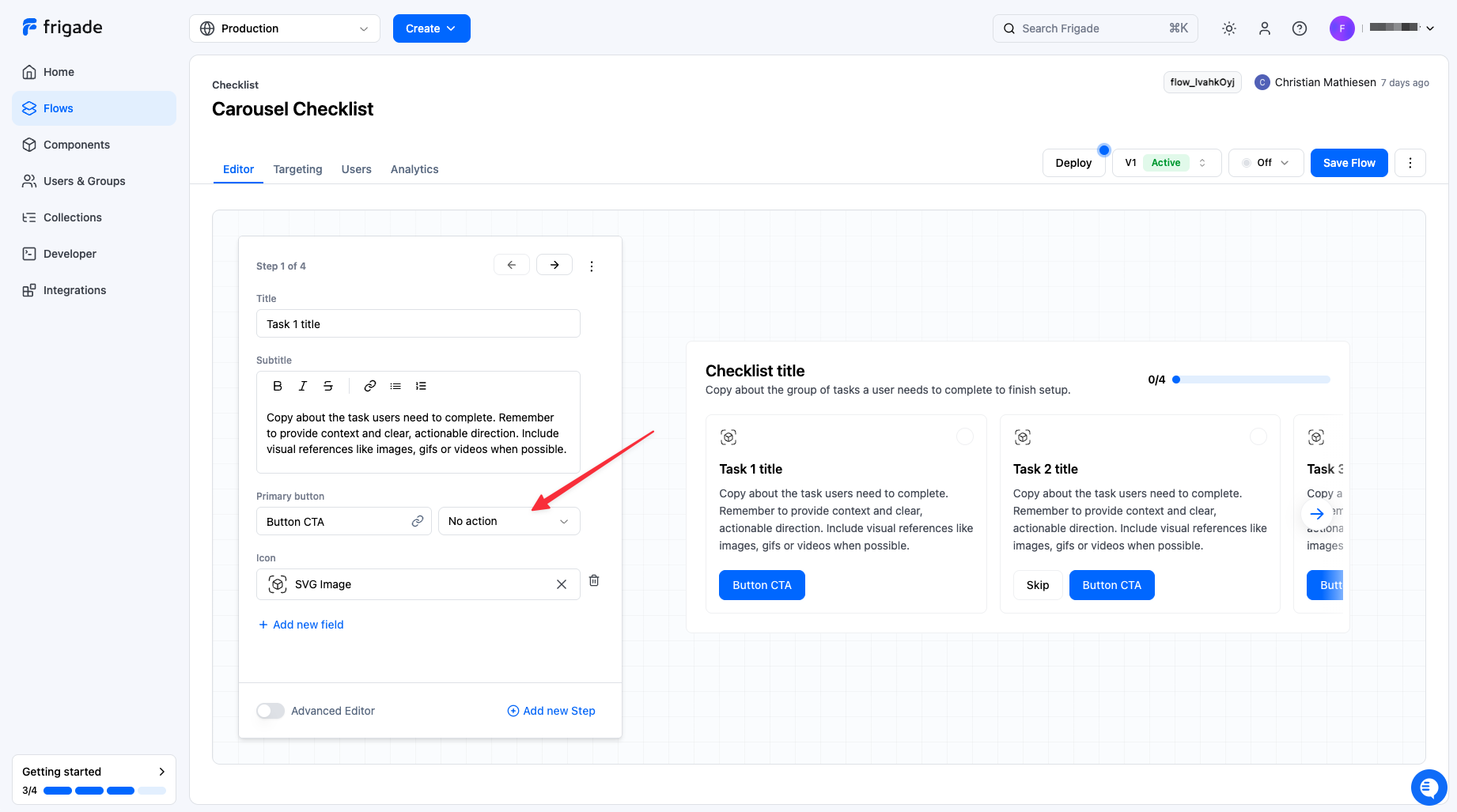
In built-in Flow components, a step is marked as complete when the primary button is clicked. To prevent this, select **No action** in the editor under the **Primary button** property:
 ## API Methods
You can also mark steps completed via the [flowStates](/api-reference/flows/flow-states-post) API endpoint.
## API Methods
You can also mark steps completed via the [flowStates](/api-reference/flows/flow-states-post) API endpoint.