> ## Documentation Index
> Fetch the complete documentation index at: https://engage-docs.frigade.com/llms.txt
> Use this file to discover all available pages before exploring further.
# Targeting
Use targeting to personalize Flows to different cohorts of users, seamlessly link multiple onboarding experiences together, and define completion criterias for a Step in a Flow.
## Flow targeting
***
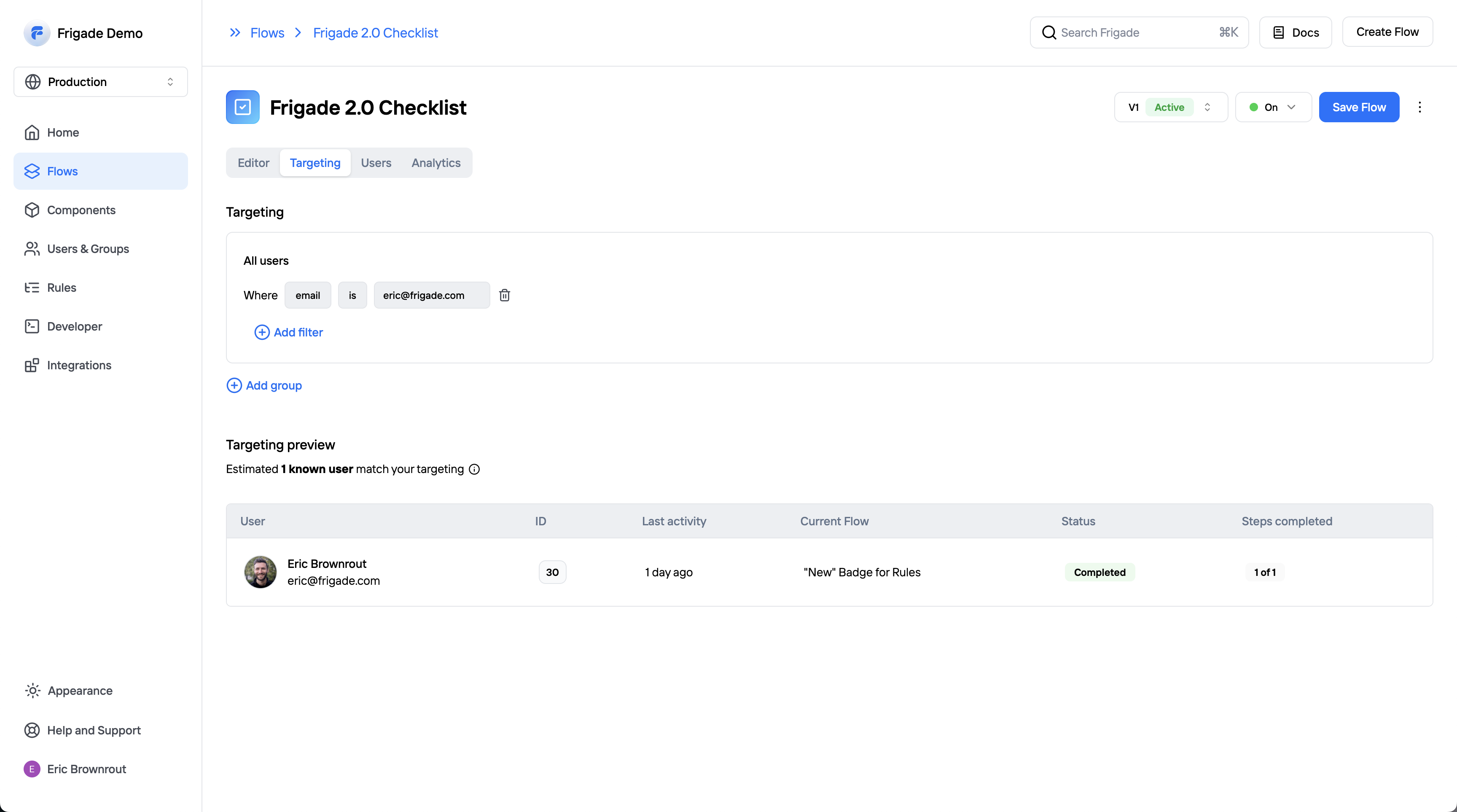
You can optionally add targeting to every Flow you create. You can view and edit this targeting logic on the **Targeting** tab of the Flow detail page. The Flow targeting logic is used to determine who should see the Flow.
 ### Example use cases
Here are some common ways we see developers using Flow targeting:
* Only show a Flow to newly created accounts
* Show a Flow to users with a certain job function or user property
* Show a Flow to users who have taken a specific action in the product (e.g. an upsell once they use something 10 times)
* Show a Flow to users who have completed another Flow (e.g. a "next steps" Flow after a user completes an initial onboarding Flow)
* Show a Flow only after X days have passed since completing another Flow
Refer to the users [SDK](/sdk/hooks/user) and [API](/api-reference/users) for more info on using properties and events in targeting
## Step targeting
***
You can also leverage targeting logic within the Steps of a Flow by using the Advanced Editor.
### Example use cases
Here are some common ways we see developers using Flow targeting:
* Only show a Flow to newly created accounts
* Show a Flow to users with a certain job function or user property
* Show a Flow to users who have taken a specific action in the product (e.g. an upsell once they use something 10 times)
* Show a Flow to users who have completed another Flow (e.g. a "next steps" Flow after a user completes an initial onboarding Flow)
* Show a Flow only after X days have passed since completing another Flow
Refer to the users [SDK](/sdk/hooks/user) and [API](/api-reference/users) for more info on using properties and events in targeting
## Step targeting
***
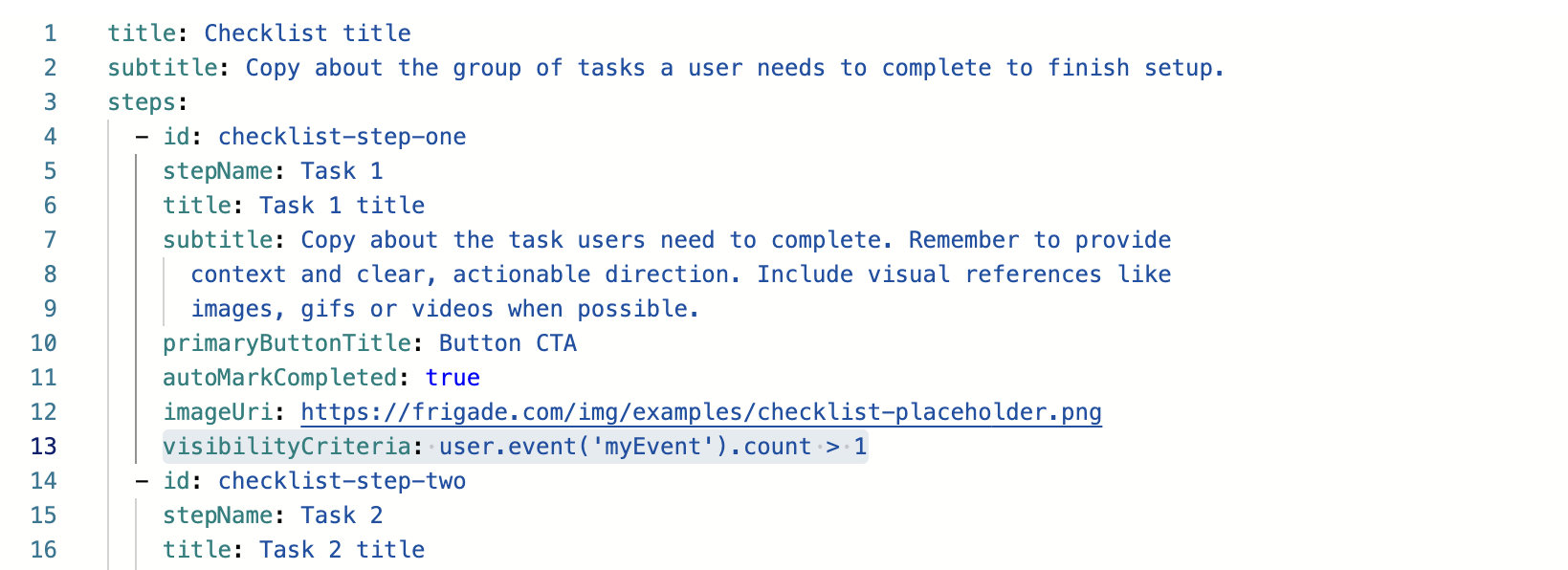
You can also leverage targeting logic within the Steps of a Flow by using the Advanced Editor.
 ### Example use cases
Here are some common ways we see developers using Step targeting:
* Mark a Step complete based on a condition [using steps\[\].completionCriteria](/sdk/advanced/completing-a-step#automatically-marking-steps-complete)
* Show or hide a Step based on a condition [using steps\[\].visibilityCriteria](/component/tour#flow-configuration)
* Mark a Step started based on a condition [using steps\[\].startCriteria](/component/tour#flow-configuration)
## User props
***
All data you've made available to Frigade can be used in your targeting logic, including the properties below supported on [users](/sdk/hooks/user). You can also sync with your [existing analytics platform](/integrations/) to leverage [user properties and events](/sdk/hooks/user) you're already tracking.
User Flow state (e.g. `COMPLETED_FLOW`)
User Flow Step state (e.g. `COMPLETED_STEP`)
Data collected from in a specific step (e.g. form data)
User event count
User properties
User properties partial match (more). It supports searching in strings, objects, and arrays.
Current URL of the user
## Group props
***
All data you've made available to Frigade can be used in your targeting logic, including the properties below supported on [groups](/sdk/hooks/group). You can also sync with your [existing analytics platform](/integrations/) to leverage [group properties and events](/sdk/hooks/group) you're already tracking
Group properties
Group event count
## Boolean logic and operators
***
Supported operators are: `&&`, `||`, `==`, `!=`, `>`, `<`, `>=`, `<=`, `contains`, `!contains`, `endsWith`, `!endsWith`, `startsWith`, `!startsWith`, `within`, `!within`
## Examples
***
Here are some examples of some of the most popular targeting logic we see developers using.
#### Relative dates
You can use relative dates in your targeting logic similar to how this is handled in [plain Javascript](https://stackoverflow.com/questions/7763327/how-to-calculate-date-difference-in-javascript).
For example, you can target users who are younger than at least 30 days:
```javascript theme={"system"}
user.property('accountCreatedDate') within 30d
```
Or target users who are older than 30 days:
```javascript theme={"system"}
user.property('accountCreatedDate') !within 30d
```
This behavior also works for targeting users who have completed a Flow within as certain time frame:
```javascript theme={"system"}
user.flow('flow_i6kH7DjcbE6tiaQd') !within 4w
```
#### Property matching
Target a Flow to a user who has connected their bank account:
```javascript theme={"system"}
user.property('bankAccountConnected') == true
```
#### Check if a property is present
Target a Flow to a user who has a job title:
```javascript theme={"system"}
user.property('jobTitle') != null
```
#### Absolute dates
Target a Flow only for users signed up after a certain date:
```javascript theme={"system"}
user.property('accountCreatedDate') > '2023-03-01 00:00:00'
```
#### Flow state
Target a Flow to a user who has completed another onboarding Flow already and has connected a bank account:
```javascript theme={"system"}
user.flow('flow_i6kH7DjcbE6tiaQd') == 'COMPLETED_FLOW' && user.property('bankAccountConnected') == true`
```
Target a Flow when a Step in another Flow is completed:
```javascript theme={"system"}
user.flowStep('flow_i6kH7DjcbE6tiaQd', 'my-step-id') == 'COMPLETED_STEP'
```
Target the output of a previous step in the same Flow:
```javascript theme={"system"}
user.flowStepData('flow_i6kH7DjcbE6tiaQd', 'my-step-id', 'my-field-id') == 'some-value'
```
#### Event counts
If the event properties do not matter and you simply wish to see if a user has triggered an event, you can use the following expression:
```javascript theme={"system"}
user.event('pageView').count > 0
```
Automatically trigger when a group/organization sends a specific event:
```javascript theme={"system"}
group.event('connectedBankAccount').count > 0
```
#### Current URL
Target based on the current URL contains a specific string:
```javascript theme={"system"}
user.currentUrl() contains 'example.com'
```
Target based on the current URL ends with a specific string:
```javascript theme={"system"}
user.currentUrl() endsWith '?myParam=123'
```
### Example use cases
Here are some common ways we see developers using Step targeting:
* Mark a Step complete based on a condition [using steps\[\].completionCriteria](/sdk/advanced/completing-a-step#automatically-marking-steps-complete)
* Show or hide a Step based on a condition [using steps\[\].visibilityCriteria](/component/tour#flow-configuration)
* Mark a Step started based on a condition [using steps\[\].startCriteria](/component/tour#flow-configuration)
## User props
***
All data you've made available to Frigade can be used in your targeting logic, including the properties below supported on [users](/sdk/hooks/user). You can also sync with your [existing analytics platform](/integrations/) to leverage [user properties and events](/sdk/hooks/user) you're already tracking.
User Flow state (e.g. `COMPLETED_FLOW`)
User Flow Step state (e.g. `COMPLETED_STEP`)
Data collected from in a specific step (e.g. form data)
User event count
User properties
User properties partial match (more). It supports searching in strings, objects, and arrays.
Current URL of the user
## Group props
***
All data you've made available to Frigade can be used in your targeting logic, including the properties below supported on [groups](/sdk/hooks/group). You can also sync with your [existing analytics platform](/integrations/) to leverage [group properties and events](/sdk/hooks/group) you're already tracking
Group properties
Group event count
## Boolean logic and operators
***
Supported operators are: `&&`, `||`, `==`, `!=`, `>`, `<`, `>=`, `<=`, `contains`, `!contains`, `endsWith`, `!endsWith`, `startsWith`, `!startsWith`, `within`, `!within`
## Examples
***
Here are some examples of some of the most popular targeting logic we see developers using.
#### Relative dates
You can use relative dates in your targeting logic similar to how this is handled in [plain Javascript](https://stackoverflow.com/questions/7763327/how-to-calculate-date-difference-in-javascript).
For example, you can target users who are younger than at least 30 days:
```javascript theme={"system"}
user.property('accountCreatedDate') within 30d
```
Or target users who are older than 30 days:
```javascript theme={"system"}
user.property('accountCreatedDate') !within 30d
```
This behavior also works for targeting users who have completed a Flow within as certain time frame:
```javascript theme={"system"}
user.flow('flow_i6kH7DjcbE6tiaQd') !within 4w
```
#### Property matching
Target a Flow to a user who has connected their bank account:
```javascript theme={"system"}
user.property('bankAccountConnected') == true
```
#### Check if a property is present
Target a Flow to a user who has a job title:
```javascript theme={"system"}
user.property('jobTitle') != null
```
#### Absolute dates
Target a Flow only for users signed up after a certain date:
```javascript theme={"system"}
user.property('accountCreatedDate') > '2023-03-01 00:00:00'
```
#### Flow state
Target a Flow to a user who has completed another onboarding Flow already and has connected a bank account:
```javascript theme={"system"}
user.flow('flow_i6kH7DjcbE6tiaQd') == 'COMPLETED_FLOW' && user.property('bankAccountConnected') == true`
```
Target a Flow when a Step in another Flow is completed:
```javascript theme={"system"}
user.flowStep('flow_i6kH7DjcbE6tiaQd', 'my-step-id') == 'COMPLETED_STEP'
```
Target the output of a previous step in the same Flow:
```javascript theme={"system"}
user.flowStepData('flow_i6kH7DjcbE6tiaQd', 'my-step-id', 'my-field-id') == 'some-value'
```
#### Event counts
If the event properties do not matter and you simply wish to see if a user has triggered an event, you can use the following expression:
```javascript theme={"system"}
user.event('pageView').count > 0
```
Automatically trigger when a group/organization sends a specific event:
```javascript theme={"system"}
group.event('connectedBankAccount').count > 0
```
#### Current URL
Target based on the current URL contains a specific string:
```javascript theme={"system"}
user.currentUrl() contains 'example.com'
```
Target based on the current URL ends with a specific string:
```javascript theme={"system"}
user.currentUrl() endsWith '?myParam=123'
```