> ## Documentation Index
> Fetch the complete documentation index at: https://engage-docs.frigade.com/llms.txt
> Use this file to discover all available pages before exploring further.
# Collections
> Launch Flows and set cool-offs without code
Collections are **reusable in-app UI channels** to launch Flows without code. Once embedded and styled, Collections can house and display new Flows without code updates. This is especially useful for product teams who want to templatize Flows and enable non-technical teammates to launch them (e.g. product announcements).
Collections also provide **governance and orchestration** through air traffic control functionality. This includes controls like limits, cool-offs, and priorities. For example, Collections can determine the frequency and timing of a group of Flows to avoid overwhelming users e.g. only show one announcement per day, space out an in-app upsell campaign.
## Launch with Collections
***
#### Announcements, Surveys, and Dialogs
Frigade comes with a default Collection called Dialogs. The Dialogs Collection is built-in to the Frigade SDK and can be used to launch Frigade Announcements, Surveys, and other Dialog-based components without updating your product codebase.
To add a new dialog-based component to your product, first make sure the Frigade Provider is properly installed in your product. This is also where you can add custom CSS for your dialog components.
```jsx theme={"system"}
import * as Frigade from "@frigade/react";
const FRIGADE_API_KEY = "api_public_abcd1234";
export const App = () => {
const userId = "...";
return (
{/* ... */}
);
};
```
Next, create a new dialog-based Flow (e.g. Announcement, NPS Survey, Tour) in Frigade. Customize this Flow with your content and targeting logic.
Finally, add the Flow you just created to the Collection via the Add Flows button in the Collection detail page. From here, you can also control the cool-off and priority of included Flows.
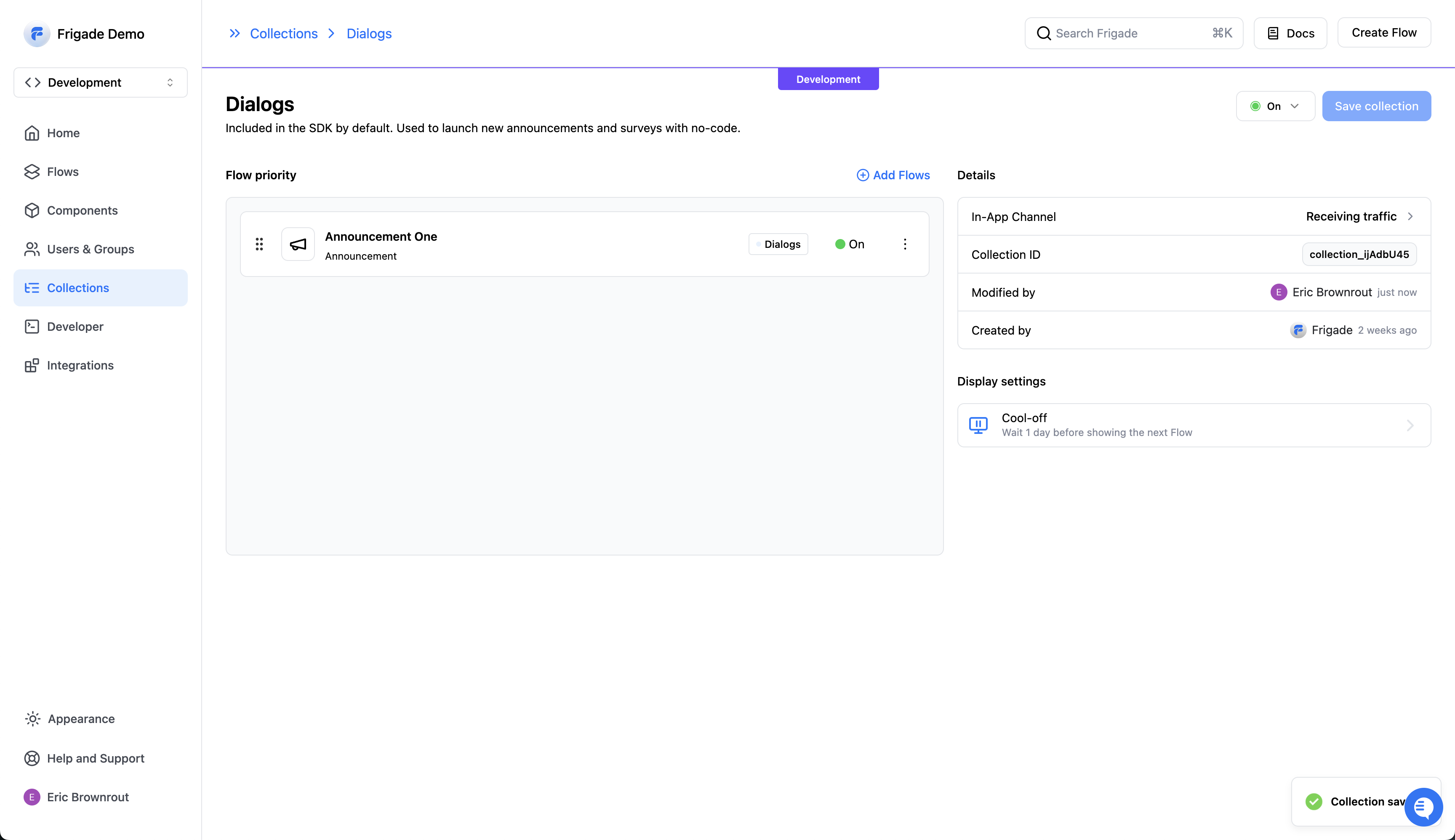 A Flow can display for eligible users immediately after being added to a Collection in Production
#### Inline UI Components
You can also use Collections to launch new Flows that are embedded directly into your product UI with no-code.
To start, create a new Collection in the Frigade dashboard.
Next, we recommend restricting the Flow types to only what you plan to support for this in-app channel e.g. Banners, Cards, etc. This prevents accidentally adding Flows to an embedded Collection that do not fit the intended space.
Next, grab the install snippet for the Collection and place it in your product codebase where you want the in-app channel to live. You can also style the Collection with custom CSS.
```jsx theme={"system"}
import * as Frigade from '@frigade/react';
const App = () => {
return (
);
};
```
Finally, create a Flow and add it to the Collection. Depending on the Flow targeting and Collection priority, the Flow will begin to go live to eligible users.
## Creating a Collection
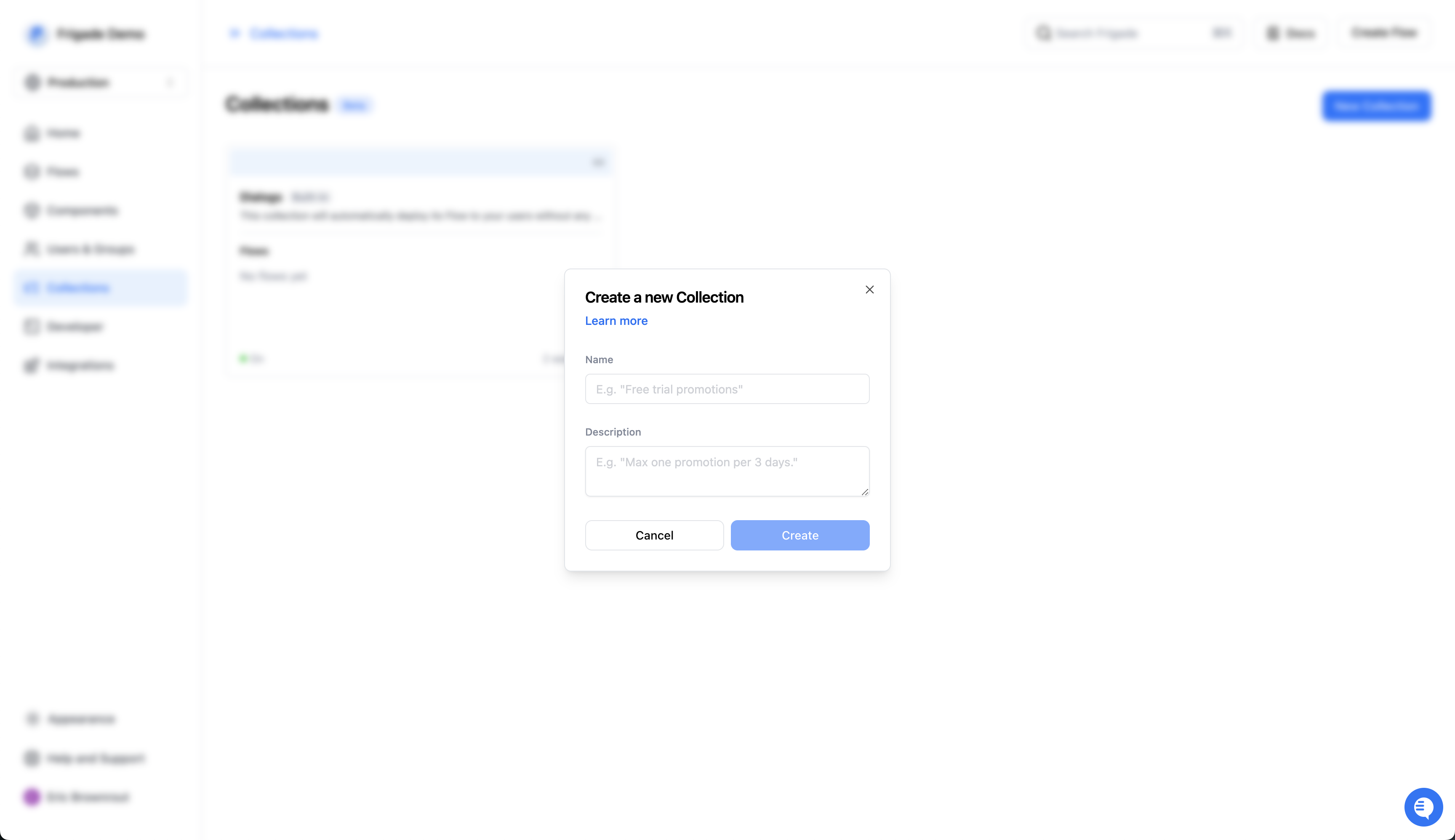
To create a Collection, visit the Collections page in the Frigade dashboard and click on the **New Collection** button. You will be prompted to enter a name and description for the Collection. Once created, you can access the embed snippet, set the display logic, and add Flows to the Collection.
A Flow can display for eligible users immediately after being added to a Collection in Production
#### Inline UI Components
You can also use Collections to launch new Flows that are embedded directly into your product UI with no-code.
To start, create a new Collection in the Frigade dashboard.
Next, we recommend restricting the Flow types to only what you plan to support for this in-app channel e.g. Banners, Cards, etc. This prevents accidentally adding Flows to an embedded Collection that do not fit the intended space.
Next, grab the install snippet for the Collection and place it in your product codebase where you want the in-app channel to live. You can also style the Collection with custom CSS.
```jsx theme={"system"}
import * as Frigade from '@frigade/react';
const App = () => {
return (
);
};
```
Finally, create a Flow and add it to the Collection. Depending on the Flow targeting and Collection priority, the Flow will begin to go live to eligible users.
## Creating a Collection
To create a Collection, visit the Collections page in the Frigade dashboard and click on the **New Collection** button. You will be prompted to enter a name and description for the Collection. Once created, you can access the embed snippet, set the display logic, and add Flows to the Collection.
 ## Ordering Flows
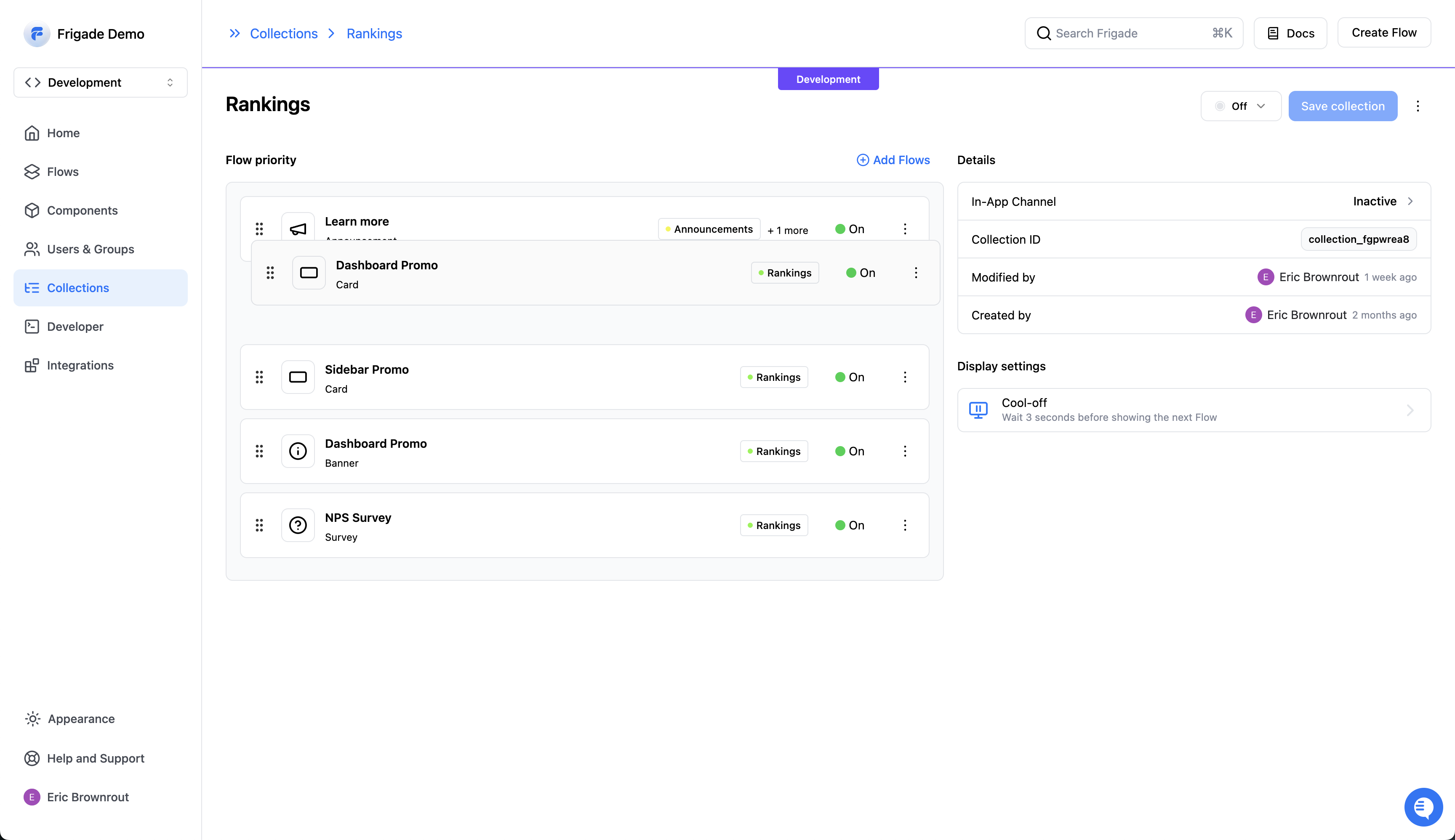
You can specify the priority of Flows within the Collection by dragging and dropping them in **Flow priority** section of the Collection detail page. This is useful for prioritizing content types (e.g. onboarding > upsells > research) or sequences (welcome > getting started > go deeper).
Note: Collections do not guarantee Flows will be shown in that order.
Flows may still be shown out of order if they are triggered out of order. Collections
are used to resolve priorities when multiple Flows are eligible to be shown at
once. If you need to ensure an exact order, you can combine Collections with [Flow
targeting](/platform/targeting) to ensure users have completed another Flow first
or any other criteria.
## Ordering Flows
You can specify the priority of Flows within the Collection by dragging and dropping them in **Flow priority** section of the Collection detail page. This is useful for prioritizing content types (e.g. onboarding > upsells > research) or sequences (welcome > getting started > go deeper).
Note: Collections do not guarantee Flows will be shown in that order.
Flows may still be shown out of order if they are triggered out of order. Collections
are used to resolve priorities when multiple Flows are eligible to be shown at
once. If you need to ensure an exact order, you can combine Collections with [Flow
targeting](/platform/targeting) to ensure users have completed another Flow first
or any other criteria.
 ## Ordering Collections
Collections themselves can also be ordered via drag and drop on the Collections overview page. Because Flows can belong to multiple Collections, this priority informs the order in which Frigade processes each Collection.
## Combining Collections and Targeting
Collections can and should be combined with [Flow targeting](/platform/targeting) to ensure the right Flows are shown to the right users at the right time.
You can think of Collections as content pools. By giving each individual Flow its own targeting, Collections can then personalize the product experience to each user by choosing the highest priority eligible Flow for them.
## Usecases
***
### Feature adoption
Let's say we have a few different educational in-app sequences to encourage further feature adoption and that a user may be eligible for multiple sequences. For each sequence, we can use Flow targeting to define
1. the eligible audience (e.g. enterprise, free trial, etc.) and
2. the exact order of the sequence (e.g. Flow 1 must be completed to see Flow 2).
If we have defined multiple sequences, we can create a Collection and add all the Flows to ensure that only a single Flow from any campaign can be shown within a desired time frame. This helps ensure that users are not overwhelmed and increases the likelihood that users will engage with the content.
### Product communications
SaaS products often use dialogs and floating UI to communicate and collect important information. For example, an [announcement](/component/announcement) or a [survey](/component/survey/nps). Oftentimes, product teams may accidentally show multiple competing experiences to the same user at the same time.
This can easily be avoided with Frigade. The default Collection called "Dialogs" can house all of our announcements and surveys to spread these experiences out with cool-offs. We can rank these Flows so that onboarding announcements take priority over product updates and user research (or whichever order makes sense for your product).
### Product Upsells
Let's say our product has a free trial experience and we want to nudge users toward upgrading to a paid plan. We can create a Collection called "Upsells" and add our entire catalog of upsell Flows to this Collection (announcements, cards, banners, etc.). We can then set a limit of one per day to ensure we're not overwhelming users with too many upsell messages.
We can define the audience for each Flow to ensure that only users who are actively in a free trial are eligible to be shown the messages. Once a user upgrades, the Flow audiences will prevent them from receiving any further promos in the sequence.
## Frequently Asked Questions
***
Collections are part of our [Scale plan](https://frigade.com/pricing). You can try out Collections in the Development environment to see if they are a good fit for your product. If you're interested in upgrading to our Scale plan, please reach out to [our team](mailto:support@frigade.com).
Collections are an evolution of what we set out to achieve with Rules and will directly replace them. Collections can still be used like Rules to orchestrate Flows and cool-offs, but they've been upgraded to add the ability to launch Flows with no-code, as well.
Available in `@frigade/react` version `2.4.17` and above.
## Ordering Collections
Collections themselves can also be ordered via drag and drop on the Collections overview page. Because Flows can belong to multiple Collections, this priority informs the order in which Frigade processes each Collection.
## Combining Collections and Targeting
Collections can and should be combined with [Flow targeting](/platform/targeting) to ensure the right Flows are shown to the right users at the right time.
You can think of Collections as content pools. By giving each individual Flow its own targeting, Collections can then personalize the product experience to each user by choosing the highest priority eligible Flow for them.
## Usecases
***
### Feature adoption
Let's say we have a few different educational in-app sequences to encourage further feature adoption and that a user may be eligible for multiple sequences. For each sequence, we can use Flow targeting to define
1. the eligible audience (e.g. enterprise, free trial, etc.) and
2. the exact order of the sequence (e.g. Flow 1 must be completed to see Flow 2).
If we have defined multiple sequences, we can create a Collection and add all the Flows to ensure that only a single Flow from any campaign can be shown within a desired time frame. This helps ensure that users are not overwhelmed and increases the likelihood that users will engage with the content.
### Product communications
SaaS products often use dialogs and floating UI to communicate and collect important information. For example, an [announcement](/component/announcement) or a [survey](/component/survey/nps). Oftentimes, product teams may accidentally show multiple competing experiences to the same user at the same time.
This can easily be avoided with Frigade. The default Collection called "Dialogs" can house all of our announcements and surveys to spread these experiences out with cool-offs. We can rank these Flows so that onboarding announcements take priority over product updates and user research (or whichever order makes sense for your product).
### Product Upsells
Let's say our product has a free trial experience and we want to nudge users toward upgrading to a paid plan. We can create a Collection called "Upsells" and add our entire catalog of upsell Flows to this Collection (announcements, cards, banners, etc.). We can then set a limit of one per day to ensure we're not overwhelming users with too many upsell messages.
We can define the audience for each Flow to ensure that only users who are actively in a free trial are eligible to be shown the messages. Once a user upgrades, the Flow audiences will prevent them from receiving any further promos in the sequence.
## Frequently Asked Questions
***
Collections are part of our [Scale plan](https://frigade.com/pricing). You can try out Collections in the Development environment to see if they are a good fit for your product. If you're interested in upgrading to our Scale plan, please reach out to [our team](mailto:support@frigade.com).
Collections are an evolution of what we set out to achieve with Rules and will directly replace them. Collections can still be used like Rules to orchestrate Flows and cool-offs, but they've been upgraded to add the ability to launch Flows with no-code, as well.
Available in `@frigade/react` version `2.4.17` and above.