> ## Documentation Index
> Fetch the complete documentation index at: https://engage-docs.frigade.com/llms.txt
> Use this file to discover all available pages before exploring further.
# Segment
Frigade supports bidirectional reads and writes from Segment. This guide shows you how to get started in a few minutes.
## Sending Segment data to Frigade
You can set up Frigade as a destination for Segment identify, group, and track calls by using [Webhooks as a destination](https://segment.com/docs/connections/destinations/catalog/webhooks/).
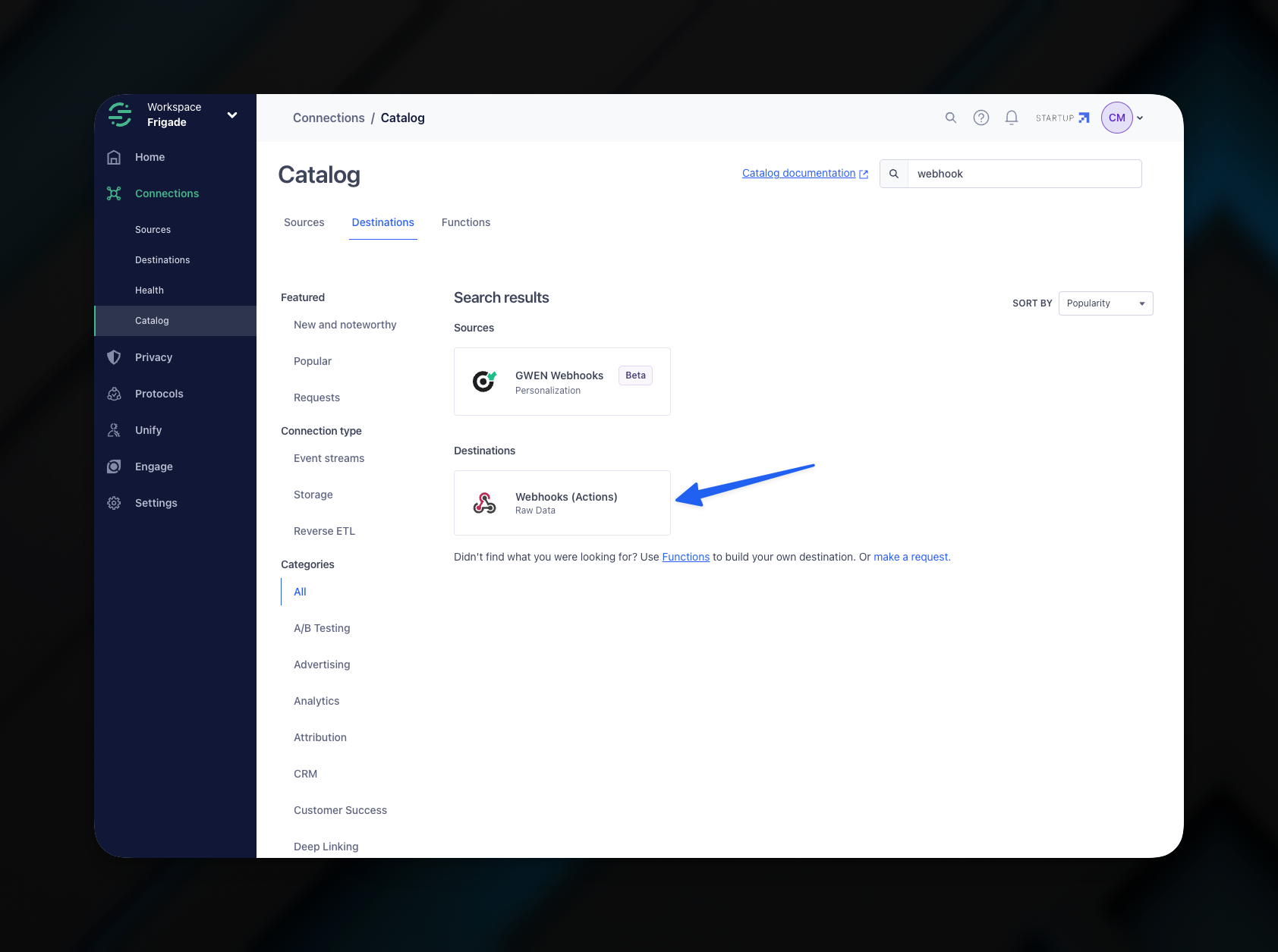
Log in to your Segment account, open workspace, and select source. Click on **Add Destination** and search and select **Webhooks**.
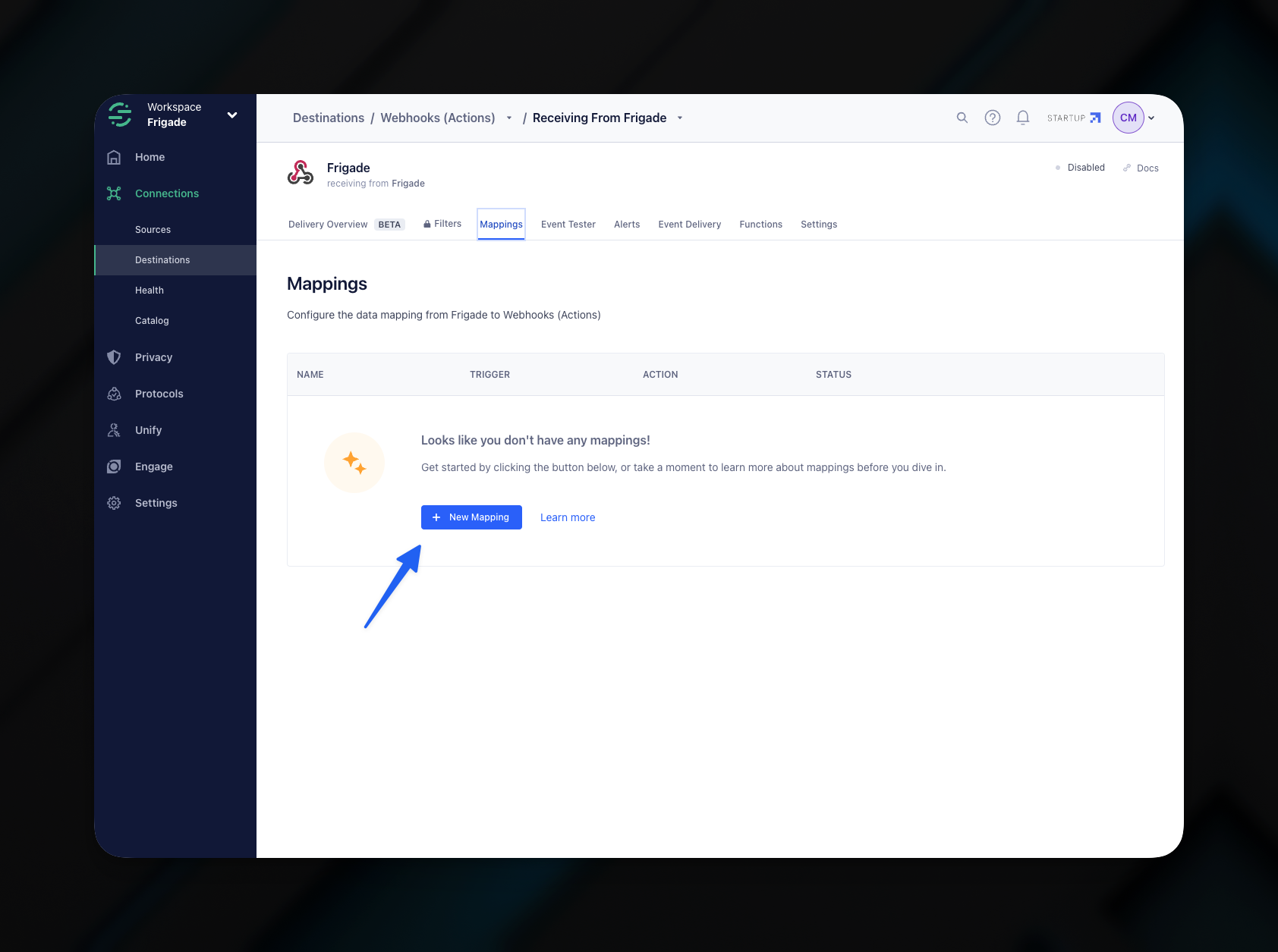
 Next after creating the destination, click the **Mappings** tab and add a new mapping:
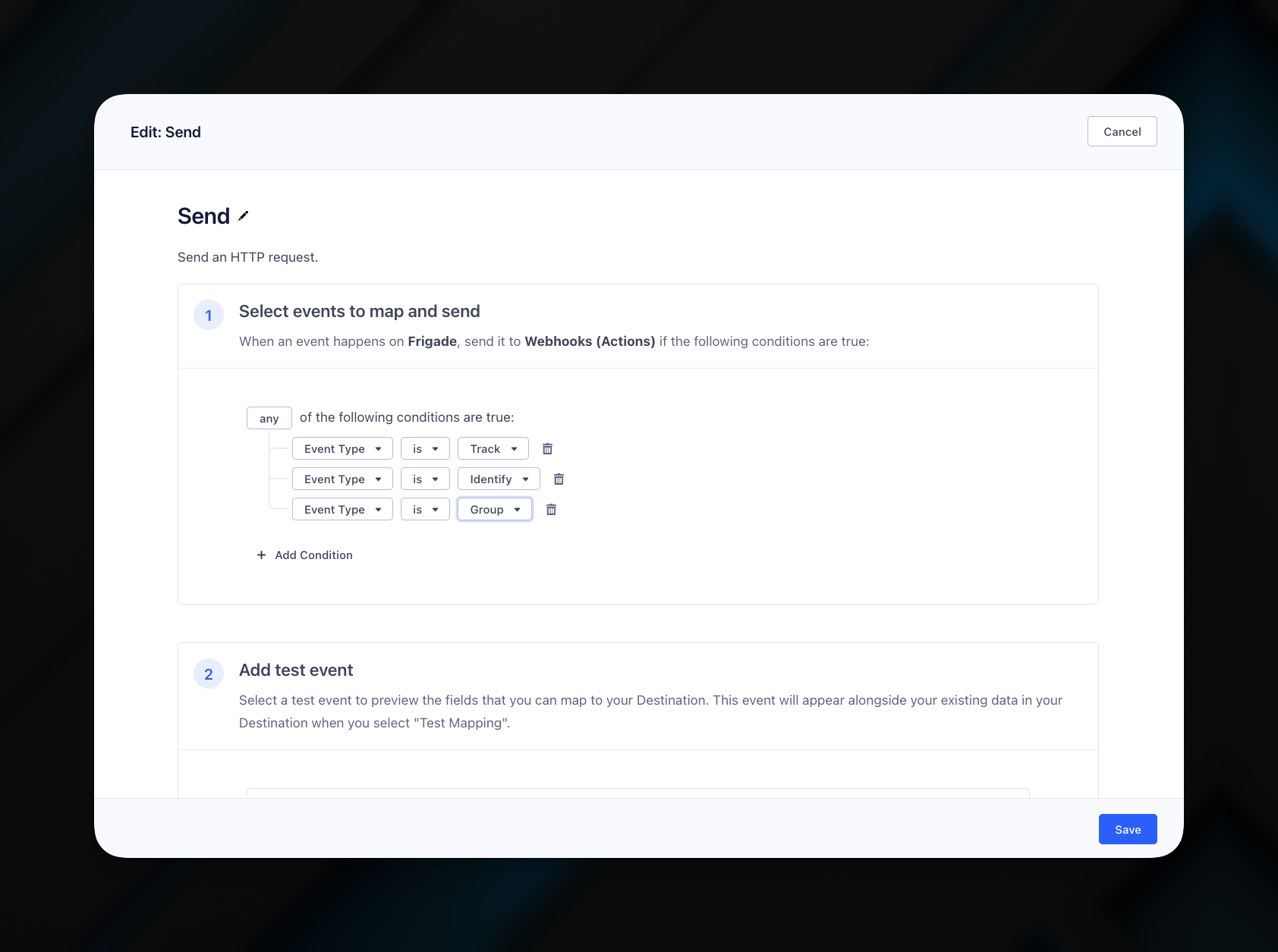
 Select the event types you want to send to Frigade. In this example we select identify, group, and track, but you can select any event type you want to send to Frigade.
 Fill out the **Select mappings** as shown below using:
* `https://api.frigade.com/v1/thirdParty/cdp/segment` as the URL
* `POST` as **Method**
* `100` as **Batch Size**. Note: if you send fewer than 500 events per day, it is recommended to set this to a lower value to avoid delays in sending events to Frigade.
* Your secret Frigade API key (it will be the one prefixed with `api_private`). This key can be found in the dashboard under [API Keys](https://app.frigade.com/developer). Make sure to prefix it with `Bearer` as shown in the screenshot below.
* `Authorization` as the key
Fill out the **Select mappings** as shown below using:
* `https://api.frigade.com/v1/thirdParty/cdp/segment` as the URL
* `POST` as **Method**
* `100` as **Batch Size**. Note: if you send fewer than 500 events per day, it is recommended to set this to a lower value to avoid delays in sending events to Frigade.
* Your secret Frigade API key (it will be the one prefixed with `api_private`). This key can be found in the dashboard under [API Keys](https://app.frigade.com/developer). Make sure to prefix it with `Bearer` as shown in the screenshot below.
* `Authorization` as the key
 Finally, set **Enable Batching?** to **Yes**. Optionally, you can send a test event to verify that the webhook is working. Click **Save** to save the webhook.
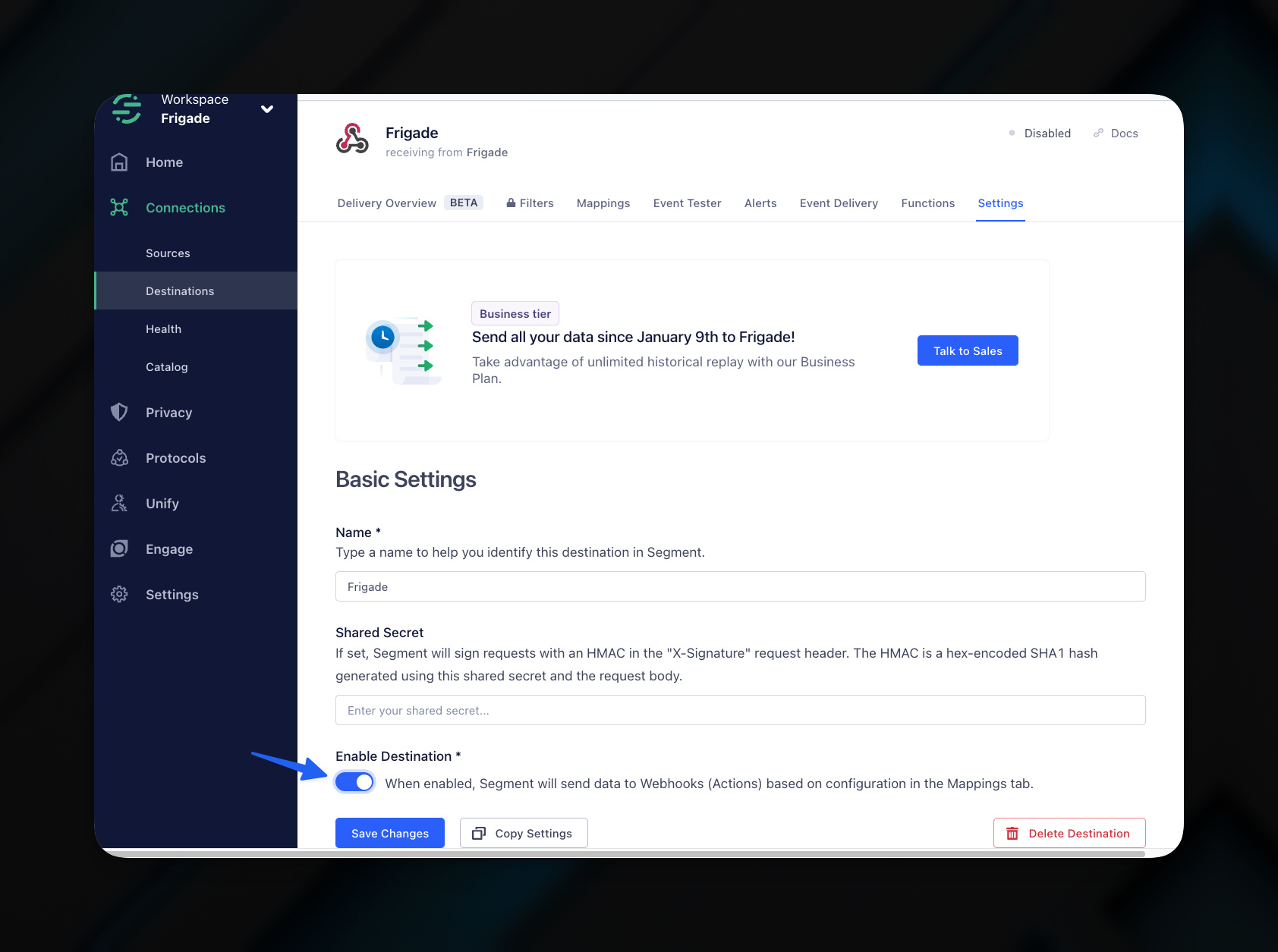
Finally, turn on the webhook by turning on the mapping you just created. Then, open the **Settings** tab and enable the Destination.
Finally, set **Enable Batching?** to **Yes**. Optionally, you can send a test event to verify that the webhook is working. Click **Save** to save the webhook.
Finally, turn on the webhook by turning on the mapping you just created. Then, open the **Settings** tab and enable the Destination.
 Congratulations! You have successfully set up Frigade as a destination for Segment. You can now use Frigade's [Targeting](/platform/targeting) with your Segment data to create personalized experiences for your users.
## Sending Frigade data to Segment
Frigade also supports sending user and organization events from Frigade Flows to Segment.
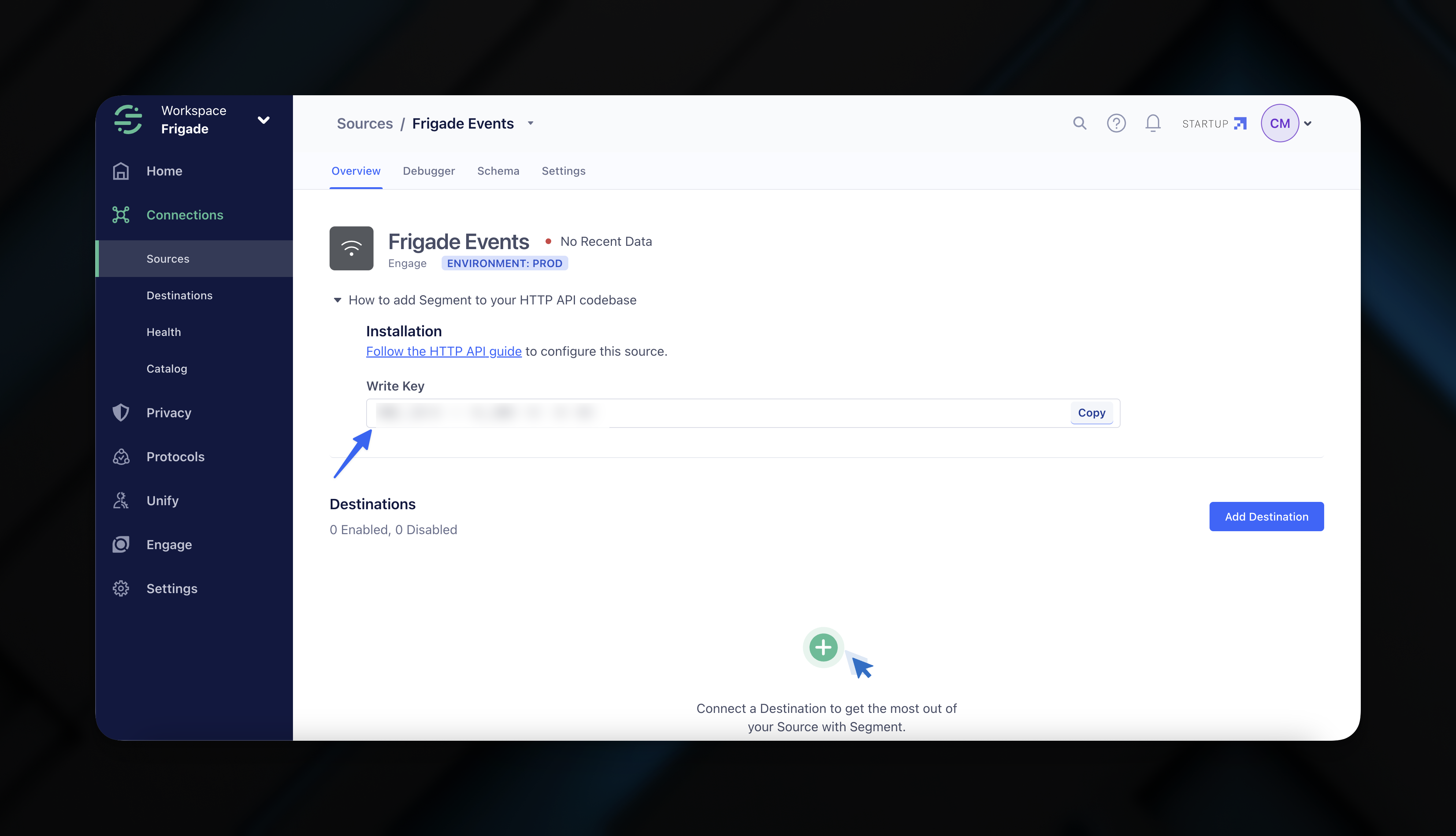
To send events to your Segment instance, select **Add Source** and then **HTTP API**. Then, copy your Segment write key.
Congratulations! You have successfully set up Frigade as a destination for Segment. You can now use Frigade's [Targeting](/platform/targeting) with your Segment data to create personalized experiences for your users.
## Sending Frigade data to Segment
Frigade also supports sending user and organization events from Frigade Flows to Segment.
To send events to your Segment instance, select **Add Source** and then **HTTP API**. Then, copy your Segment write key.
 Next, go to your Frigade dashboard and select **Integrations**. Click **Add Integration** and select **Segment**.
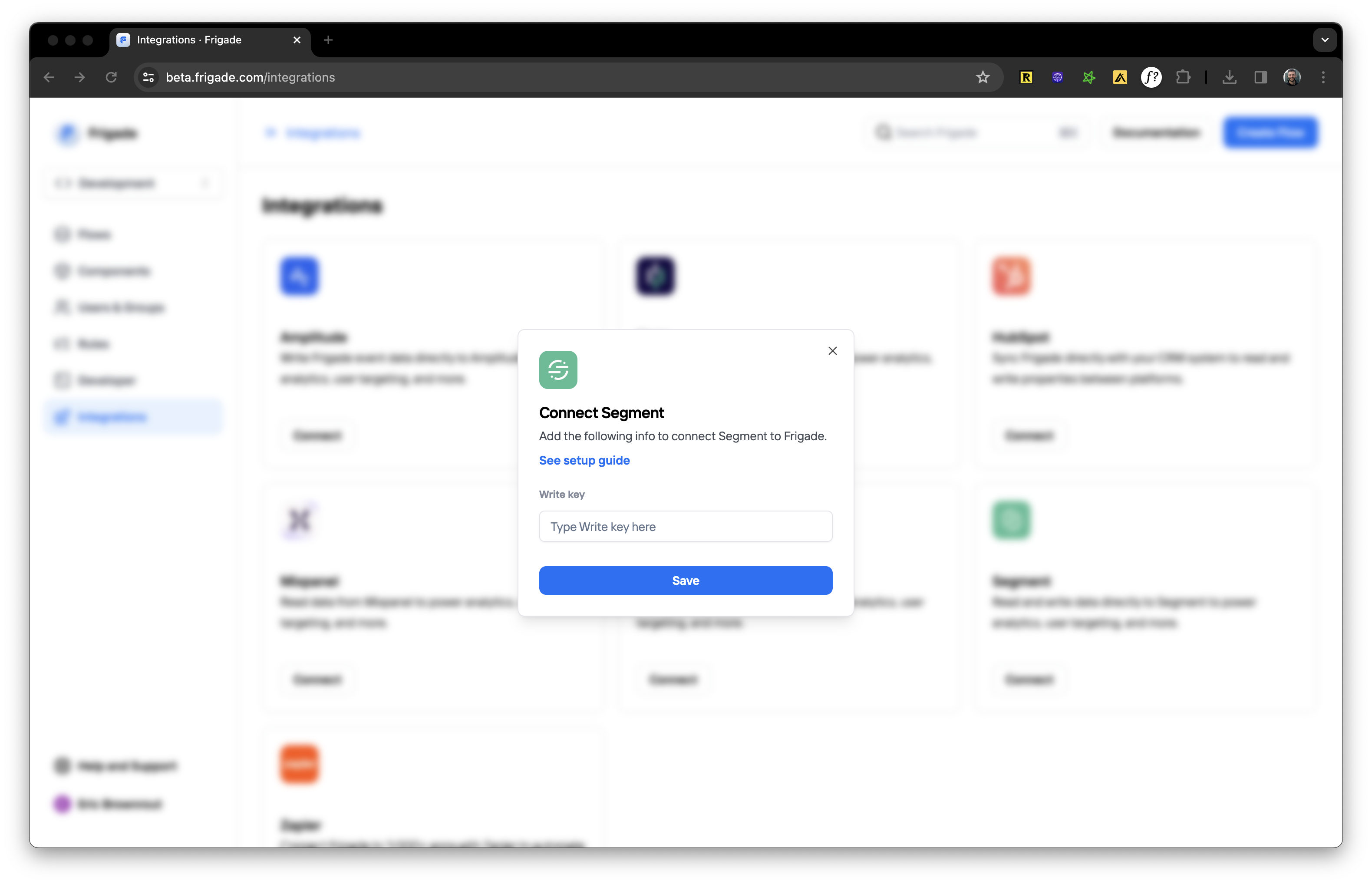 You will be asked to enter your Segment write key. Click **Connect** to save the integration. Shortly after, events will start streaming from Frigade in real-time.