> ## Documentation Index
> Fetch the complete documentation index at: https://engage-docs.frigade.com/llms.txt
> Use this file to discover all available pages before exploring further.
# Salesforce
Frigade supports syncing data with Salesforce. For instance, when a User completes a Survey or a step in a Checklist, Frigade will send this data to Salesforce to the matching contact.
Frigade will only send data to Salesforce if the User has an email associated with them. To associate an email with a User, see the [useUser hook](/sdk/hooks/user) or the [User API](/api-reference/users).
# Sending Frigade data to Salesforce
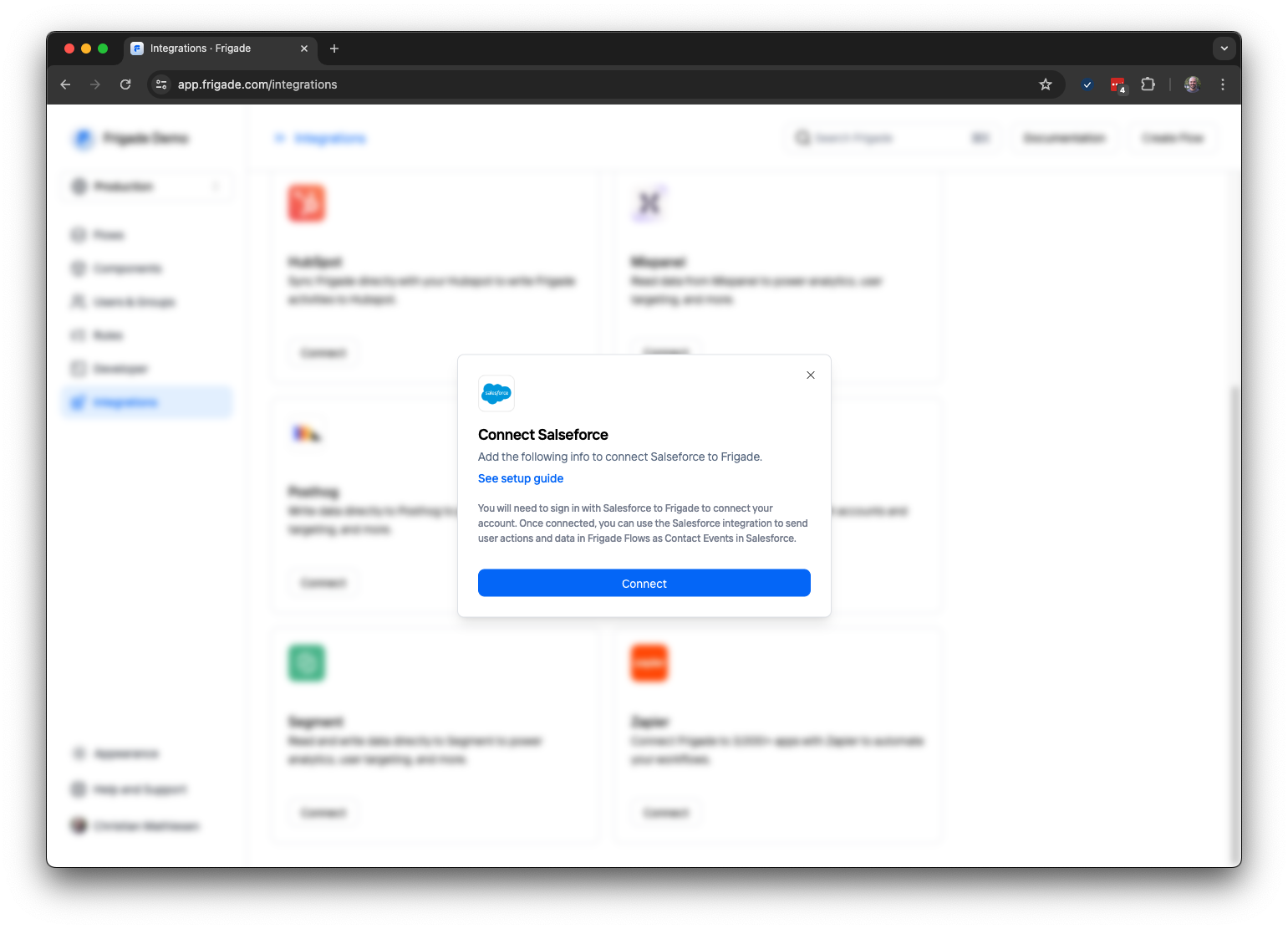
To get started, open teh Frigade Dashboard and navigate to the **Integrations**. Click **Connect** on the Salesforce integration.
This will prompt you to connect your Salesforce account to Frigade using OAuth.
 After connecting Salesforce, you will have the option to specify which data you would like to sync to Salesforce.
By default, Frigade will only send Step and Flow completion events to Salesforce along with the associated metadata. For example, when a User completes a Survey or a step in a Checklist, Frigade will send this data to Salesforce for the corresponding contact.
You can test the integration by completing a Flow or a Step in a Flow. Once the Flow is completed, you can check Salesforce to see if the data has been synced.
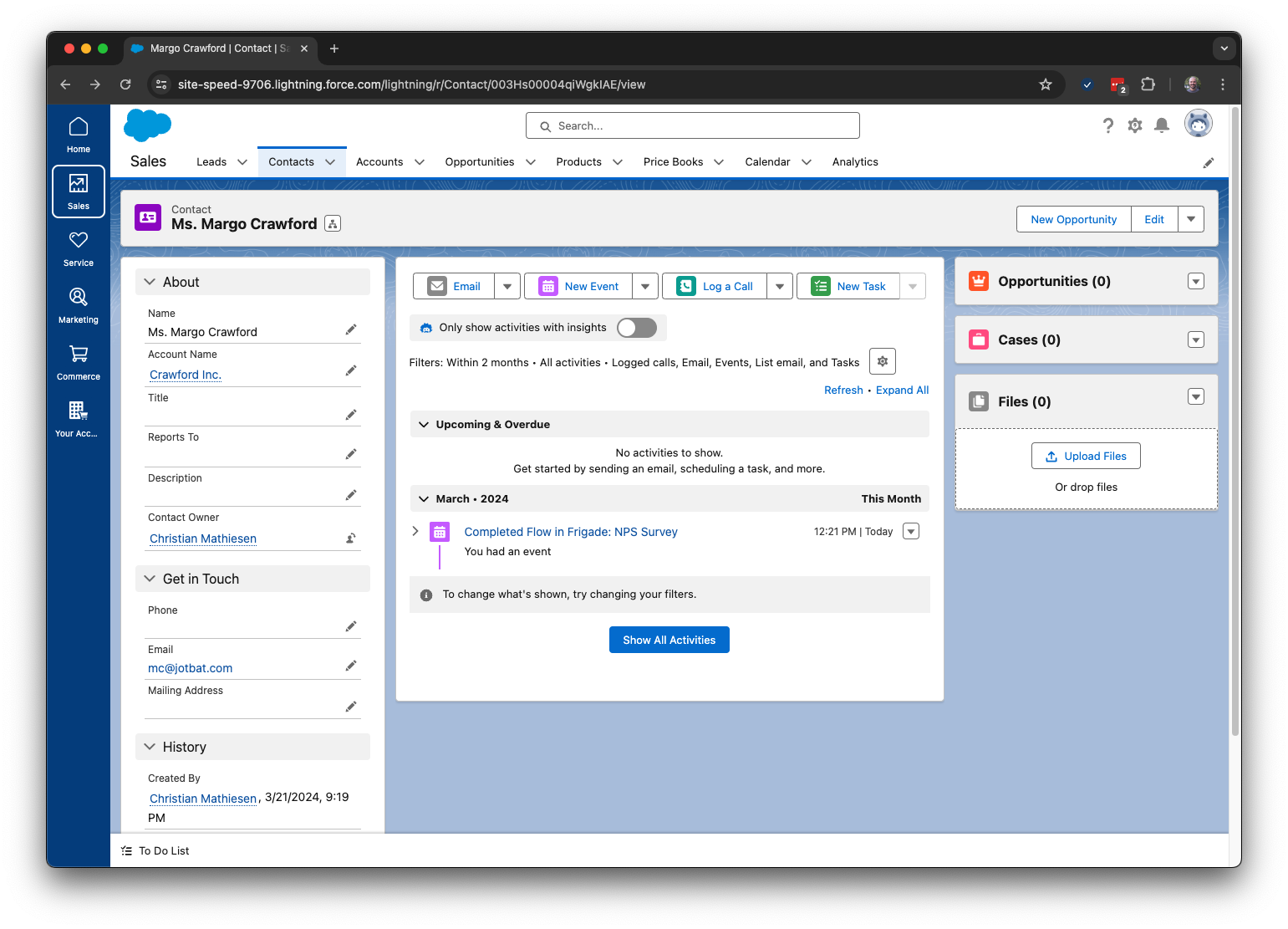
In the example below, a contact completed and NPS Survey and the data was synced to Salesforce:
After connecting Salesforce, you will have the option to specify which data you would like to sync to Salesforce.
By default, Frigade will only send Step and Flow completion events to Salesforce along with the associated metadata. For example, when a User completes a Survey or a step in a Checklist, Frigade will send this data to Salesforce for the corresponding contact.
You can test the integration by completing a Flow or a Step in a Flow. Once the Flow is completed, you can check Salesforce to see if the data has been synced.
In the example below, a contact completed and NPS Survey and the data was synced to Salesforce: