> ## Documentation Index
> Fetch the complete documentation index at: https://engage-docs.frigade.com/llms.txt
> Use this file to discover all available pages before exploring further.
# Mixpanel
Frigade supports ingesting Mixpanel data and using this data to [Target flows](/platform/targeting) to users.
There are two ways to integrate Mixpanel with Frigade: real-time sync (via Mixpanel Webhooks) or a daily sync (via the Mixpanel API). Both options can also be used together.
Depending on your use case, we recommend using the Webhook integration for real-time data and the API integration for historical data as well as syncing non-standard user properties.
## Mixpanel Webhooks (Webhook sync)
Sending Mixpanel data via Webhooks allows you to send real-time data to Frigade as your users enter and leave cohorts. The setup process is as follows:
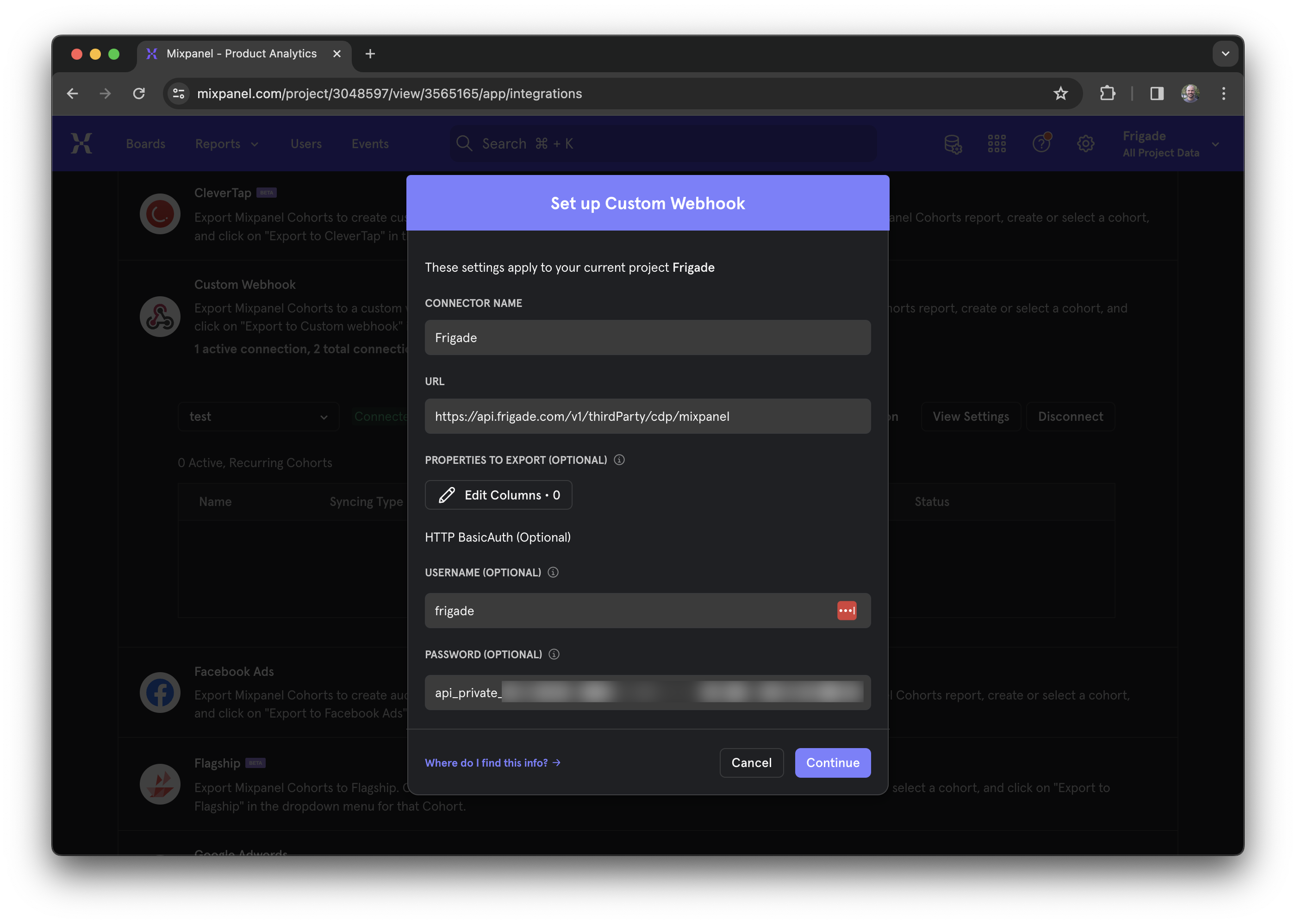
Following the [Mixpanel documentation](https://docs.mixpanel.com/docs/cohort-sync/webhooks), create a new Webhook on the Mixpanel **Integrations** page.
You should use the following parameters when creating the webhook:
* **Connector name:** `Frigade`
* **URL:** `https://api.frigade.com/v1/thirdParty/cdp/mixpanel`
* **Username:** `frigade`
* **Password:** Your private Frigade API key (found on the **Developer** page in the Frigade dashboard)
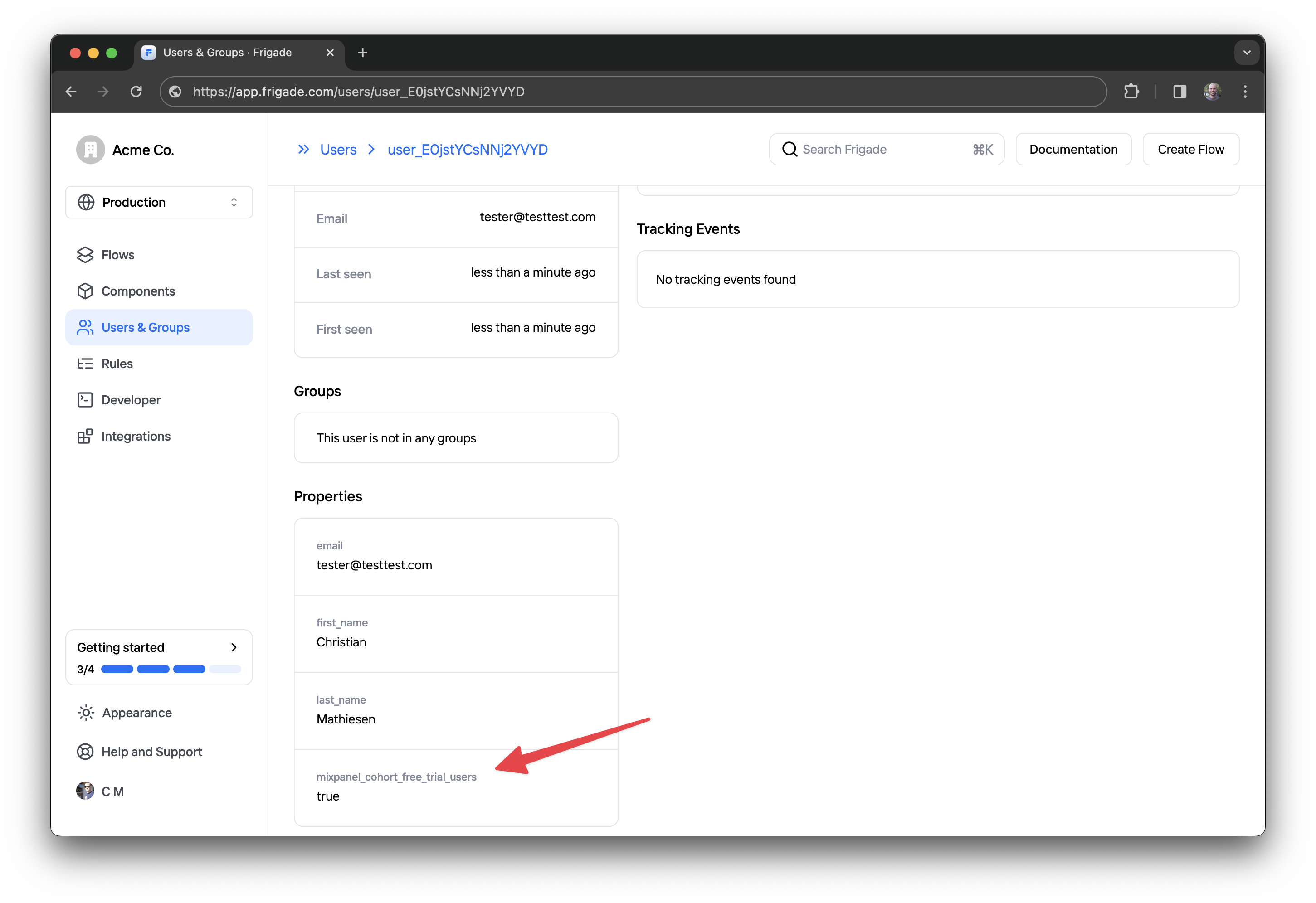
 After setting up the Webhook, you will see the cohort data in the Frigade dashboard. Note that it may take up to 30 minutes the first time before all data is synced.
 ## Mixpanel Cohorts in Frigade (API sync)
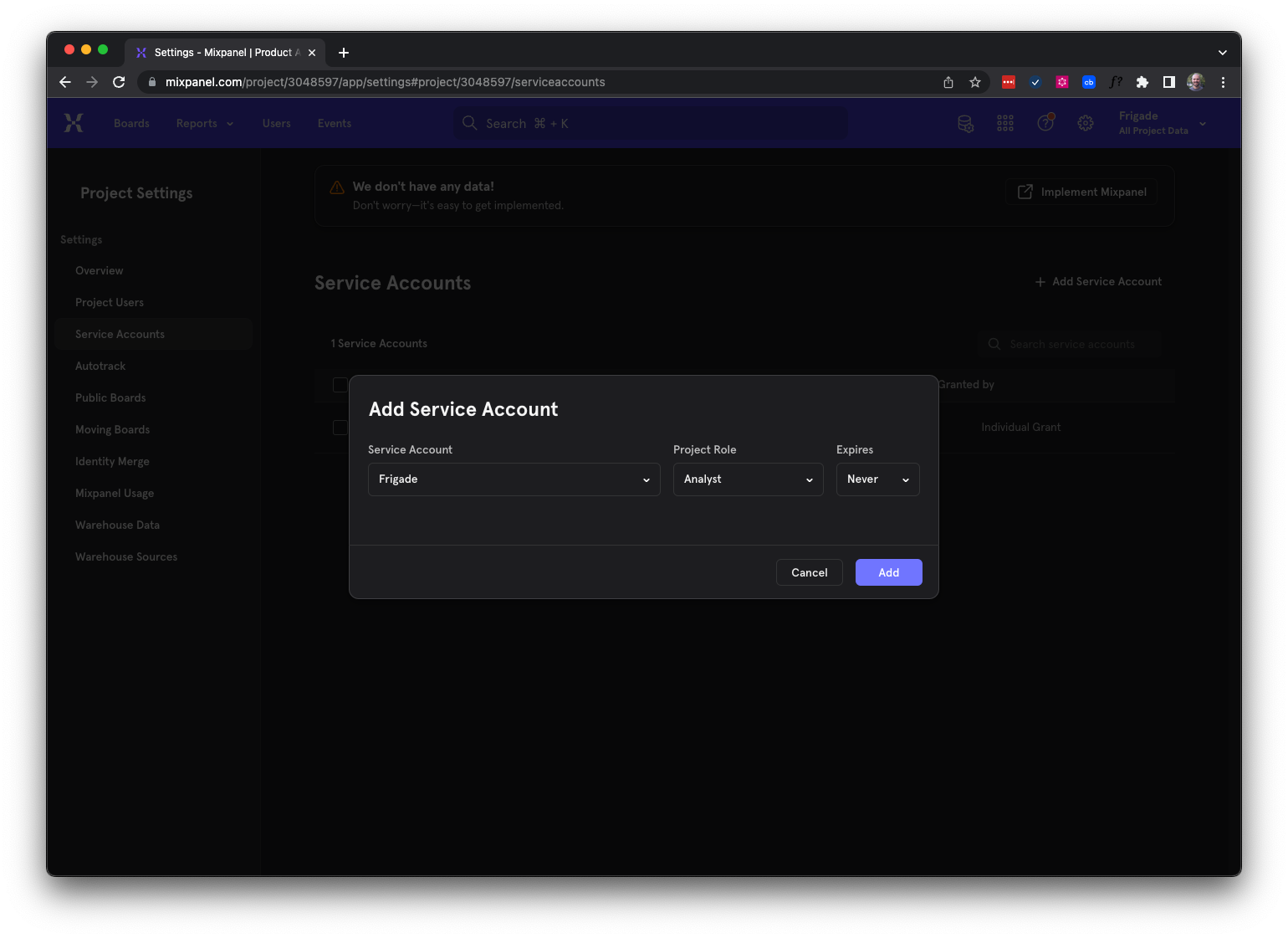
To send your Cohorts to Frigade, you will need to create a service account in Mixpanel and add the keys to Frigade. Frigade will then automatically sync your cohorts from Mixpanel.
To create a service account for Frigade, open your Mixpanel project, then click **Project Settings** and select the **Service Accounts** tab. Then click **Add Service Account** and select **Analyst** as the role.
## Mixpanel Cohorts in Frigade (API sync)
To send your Cohorts to Frigade, you will need to create a service account in Mixpanel and add the keys to Frigade. Frigade will then automatically sync your cohorts from Mixpanel.
To create a service account for Frigade, open your Mixpanel project, then click **Project Settings** and select the **Service Accounts** tab. Then click **Add Service Account** and select **Analyst** as the role.
 Open the [Integrations](https://app.frigade.com/integrations) page in the Frigade dashboard and click the "Connect" button for Mixpanel. Then paste the two keys you copied in the previous step into the corresponding fields.
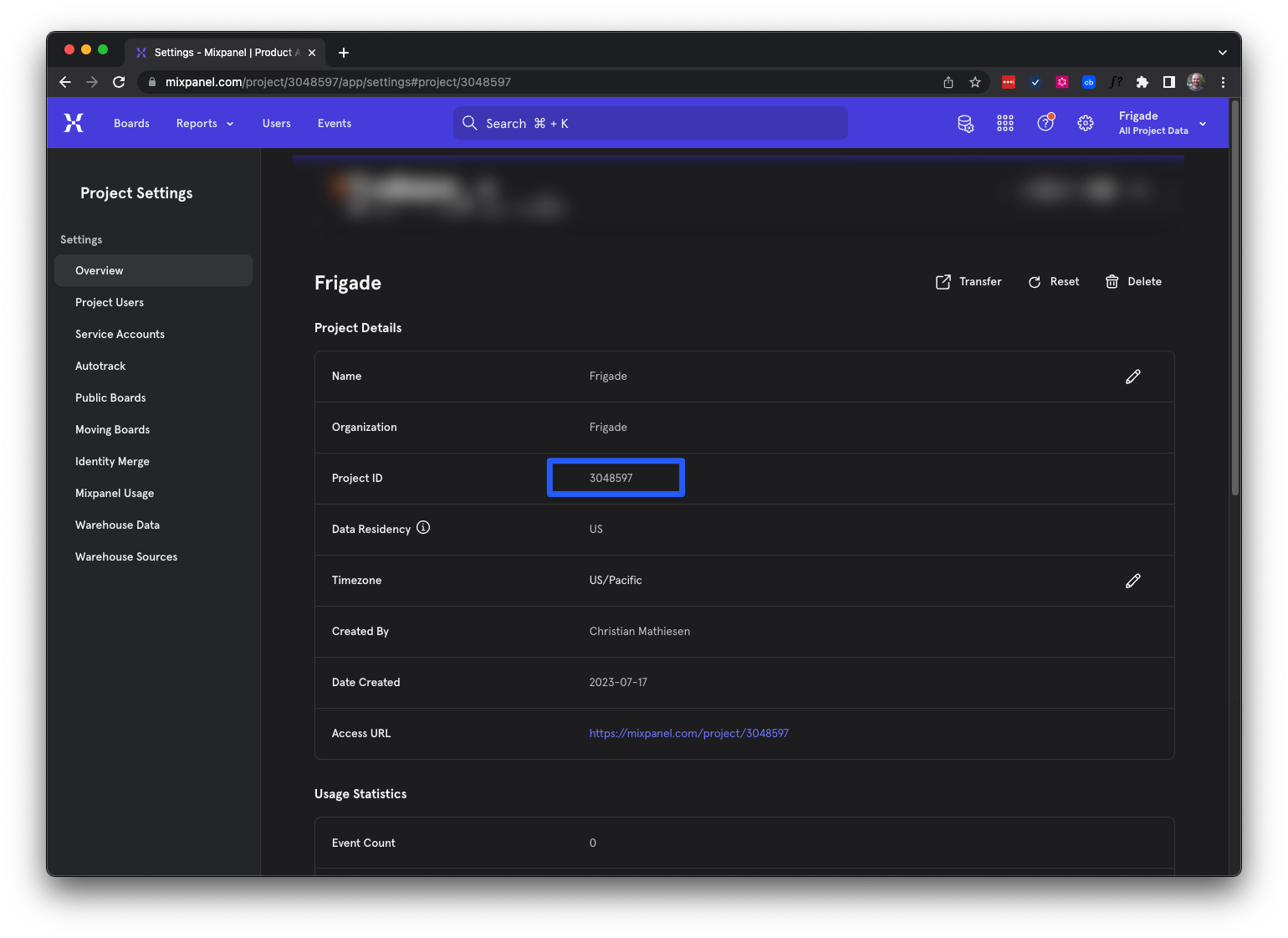
Then, copy the **Project ID** from Mixpanel that you wish to sync cohorts from. You can find the Project ID on the Project Settings page in Mixpanel:
Open the [Integrations](https://app.frigade.com/integrations) page in the Frigade dashboard and click the "Connect" button for Mixpanel. Then paste the two keys you copied in the previous step into the corresponding fields.
Then, copy the **Project ID** from Mixpanel that you wish to sync cohorts from. You can find the Project ID on the Project Settings page in Mixpanel:
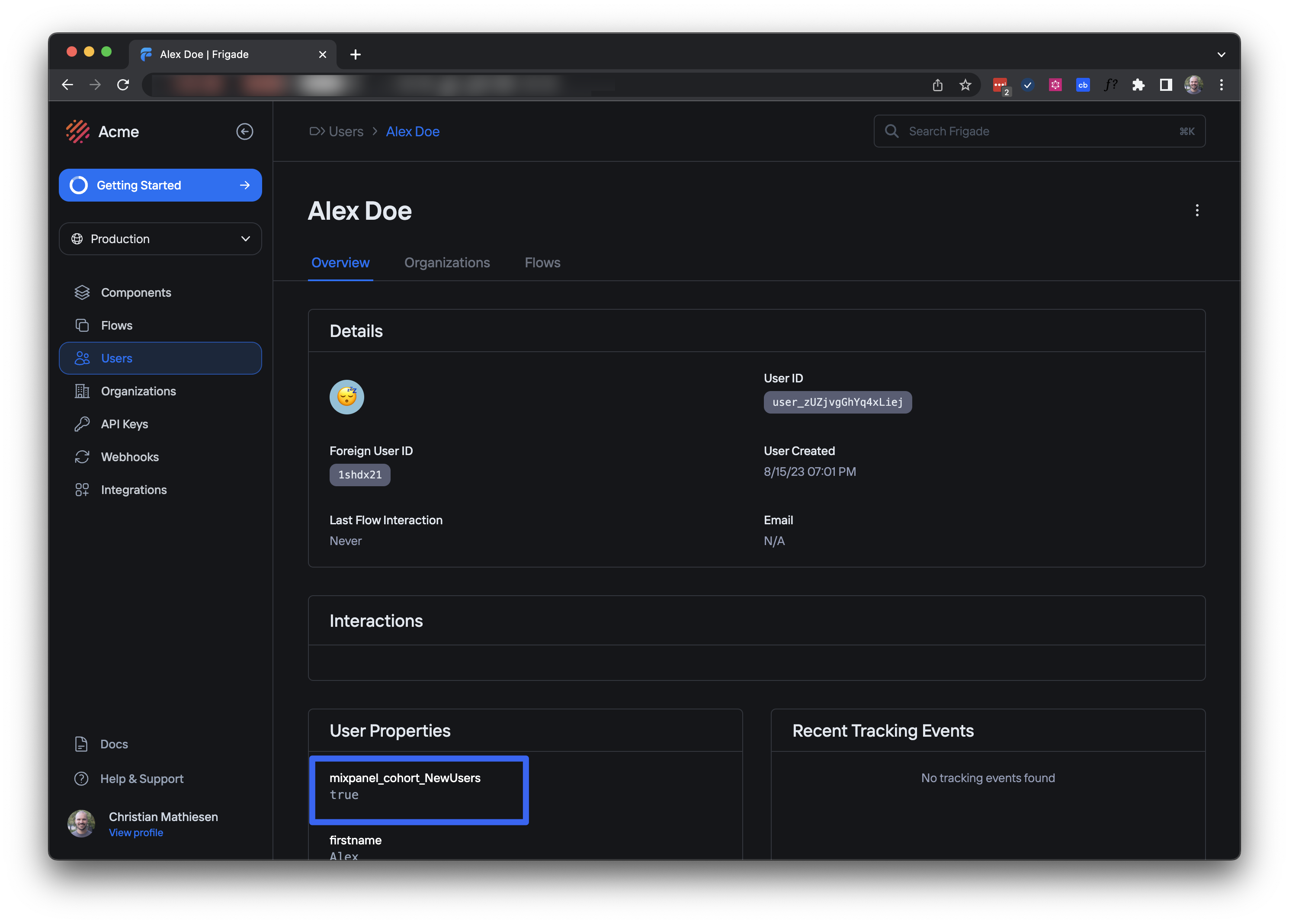
 Your Mixpanel cohorts appear as properties on your users in Frigade. Each cohort is prefixed with `mixpanel_cohort_` and the name of the cohort. For example, if you have a cohort named `NewUsers`, you will see a property named `mixpanel_cohort_NewUsers` on your users in Frigade.
 ## Targeting Mixpanel Cohorts
You can target users based on these properties in the [Targeting](/platform/targeting) section of the Frigade dashboard. For instance, to target users in the `NewUsers` cohort, you can use the following targeting rule:
```js theme={"system"}
user.property('mixpanel_cohort_NewUsers') == true
```
## Targeting Mixpanel Cohorts
You can target users based on these properties in the [Targeting](/platform/targeting) section of the Frigade dashboard. For instance, to target users in the `NewUsers` cohort, you can use the following targeting rule:
```js theme={"system"}
user.property('mixpanel_cohort_NewUsers') == true
```