> ## Documentation Index
> Fetch the complete documentation index at: https://engage-docs.frigade.com/llms.txt
> Use this file to discover all available pages before exploring further.
# Hubspot
Frigade's HubSpot integration is bidirectional. Activity from Frigade flows is written back to the matching HubSpot contact, and HubSpot contact and company properties are pulled into Frigade as user and group properties — so you can target flows based on what HubSpot already knows about a user.
Frigade matches HubSpot contacts to Frigade users by email, so each user must have an email associated with them. To associate an email with a User, see the [useUser hook](/sdk/hooks/user) or the [User API](/api-reference/users).
# Sending Frigade data to Hubspot
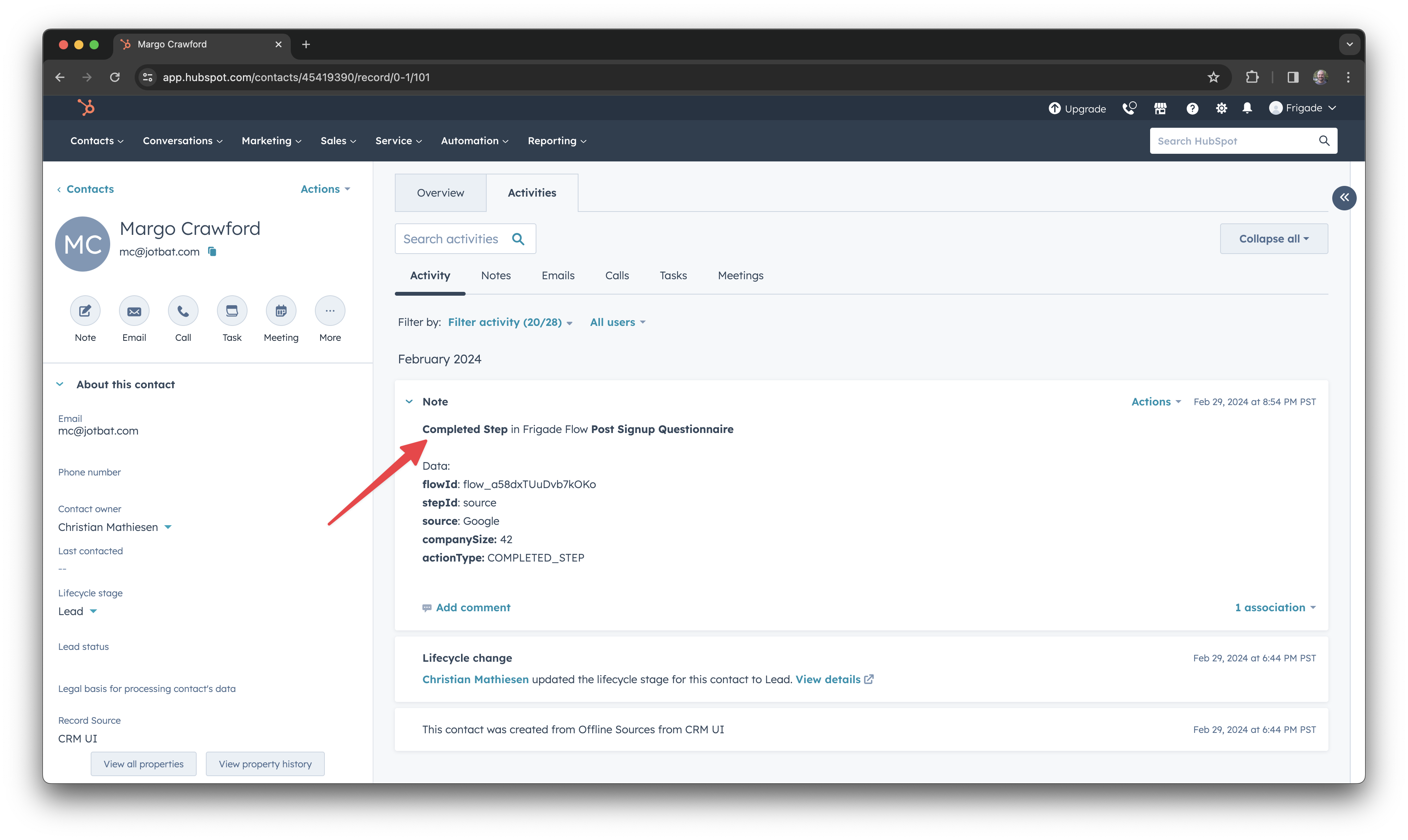
When users take action in flows, Frigade sends the data and any corresponding metadata to the matching HubSpot contact. For instance, when a user completes a Survey or a step in a Checklist, the result is recorded as a Note on that contact.
To get started, you will need to create a Hubspot API token by setting up a Private App in your Hubspot account.
You can do this by navigating to the **Settings** > **Integrations** > **Private Apps** page as seen below:
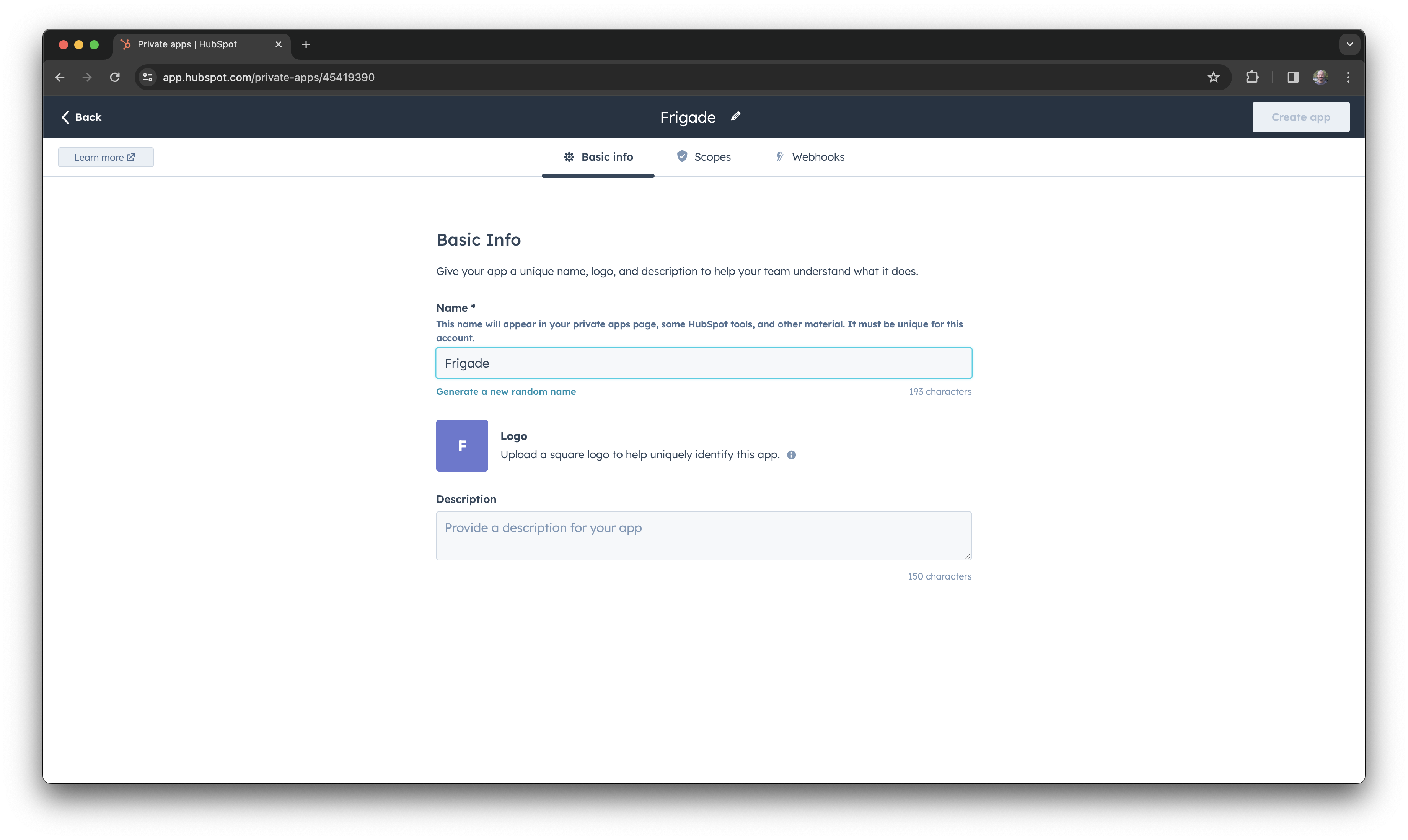
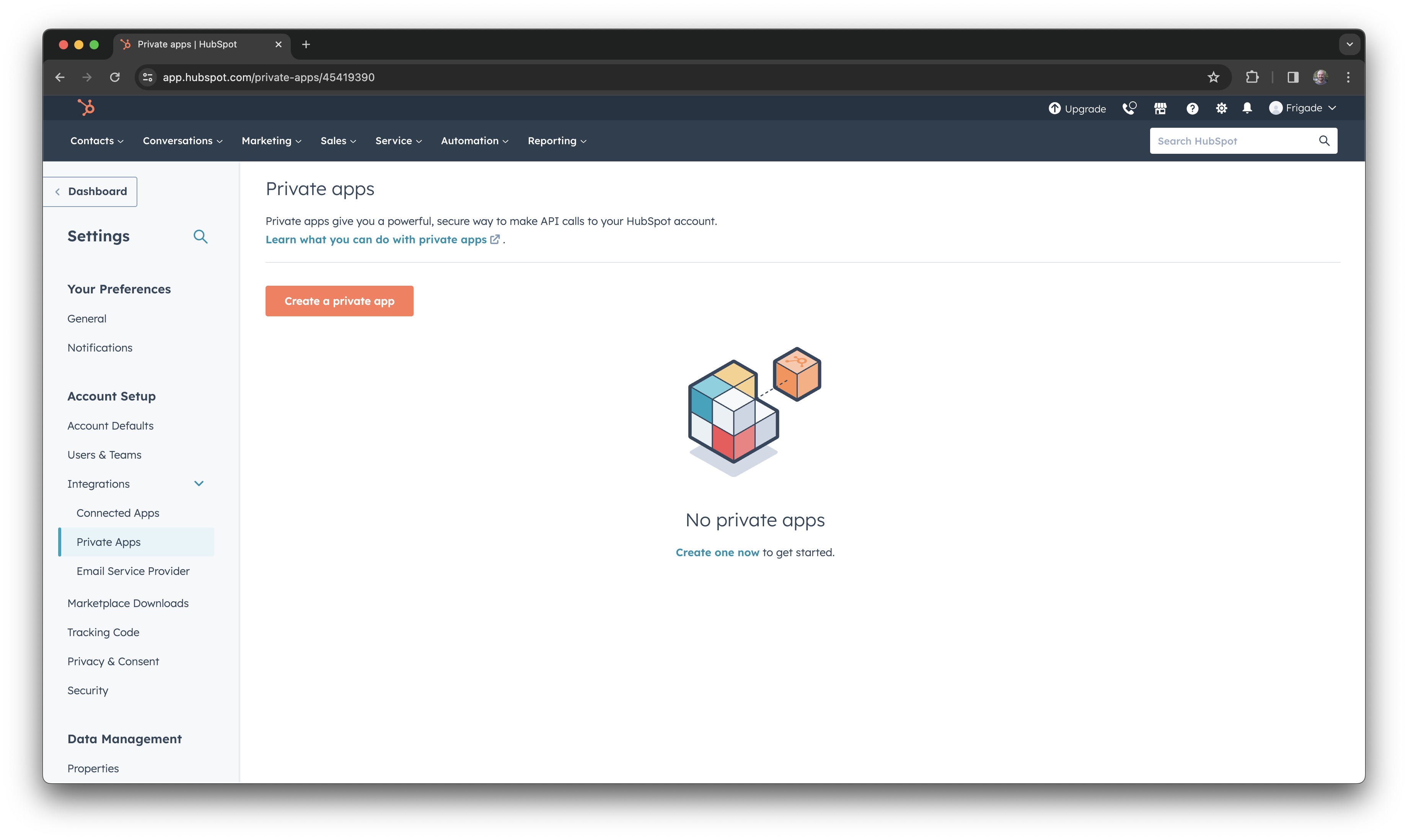 Click on the **Create a private app** button to create a new app. Type in "Frigade" as the app name. Leave description and logo blank.
 Click on the **Scopes** tab and select the scopes which you would like Frigade to have access to. As a minimum, `crm.objects.contacts` (read and write) is required. To also pull contact and company properties into Frigade, additionally enable `crm.objects.companies` (read) and `crm.schemas.contacts` / `crm.schemas.companies` (read).
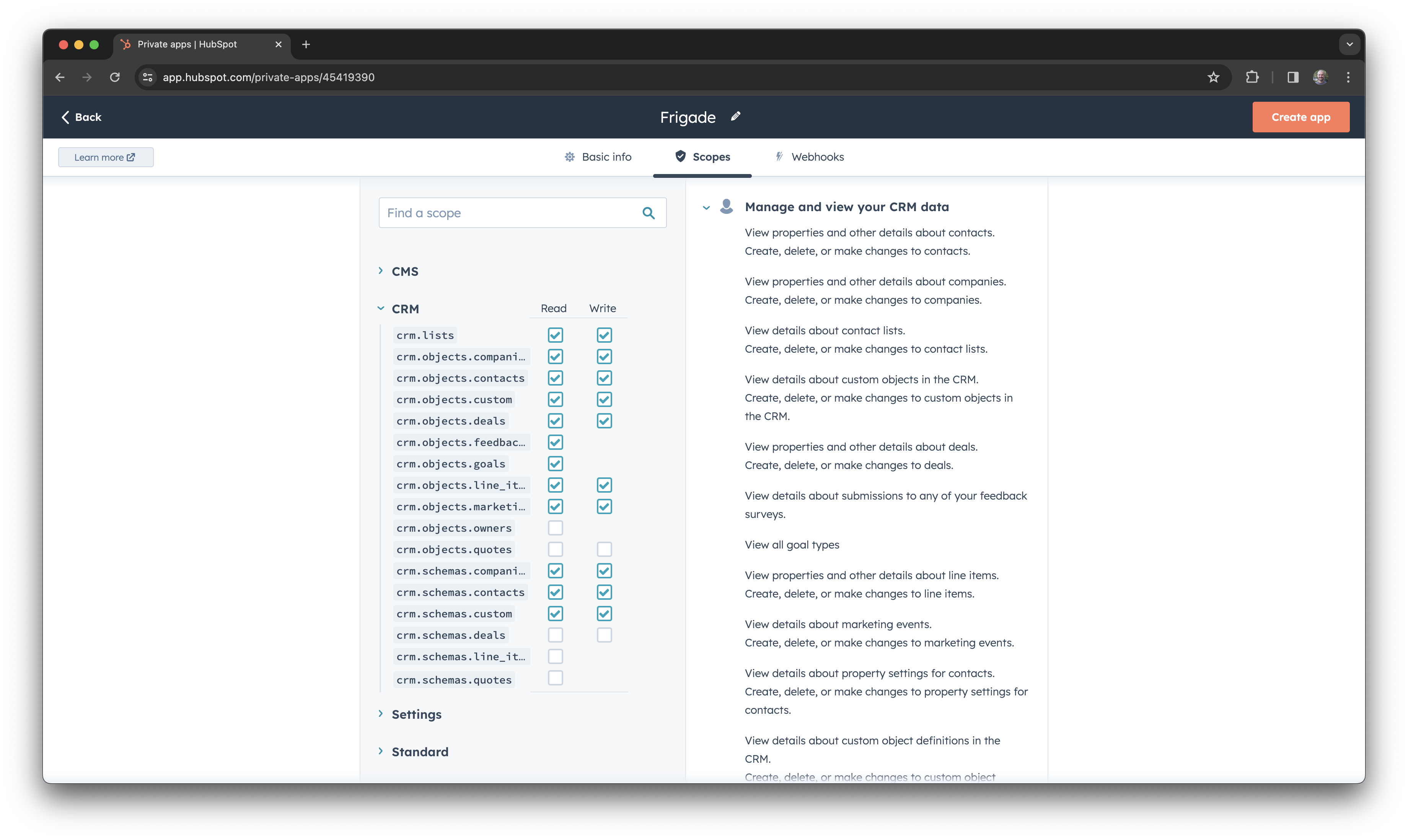 Once you have set the permissions, click on the **Create app** button.
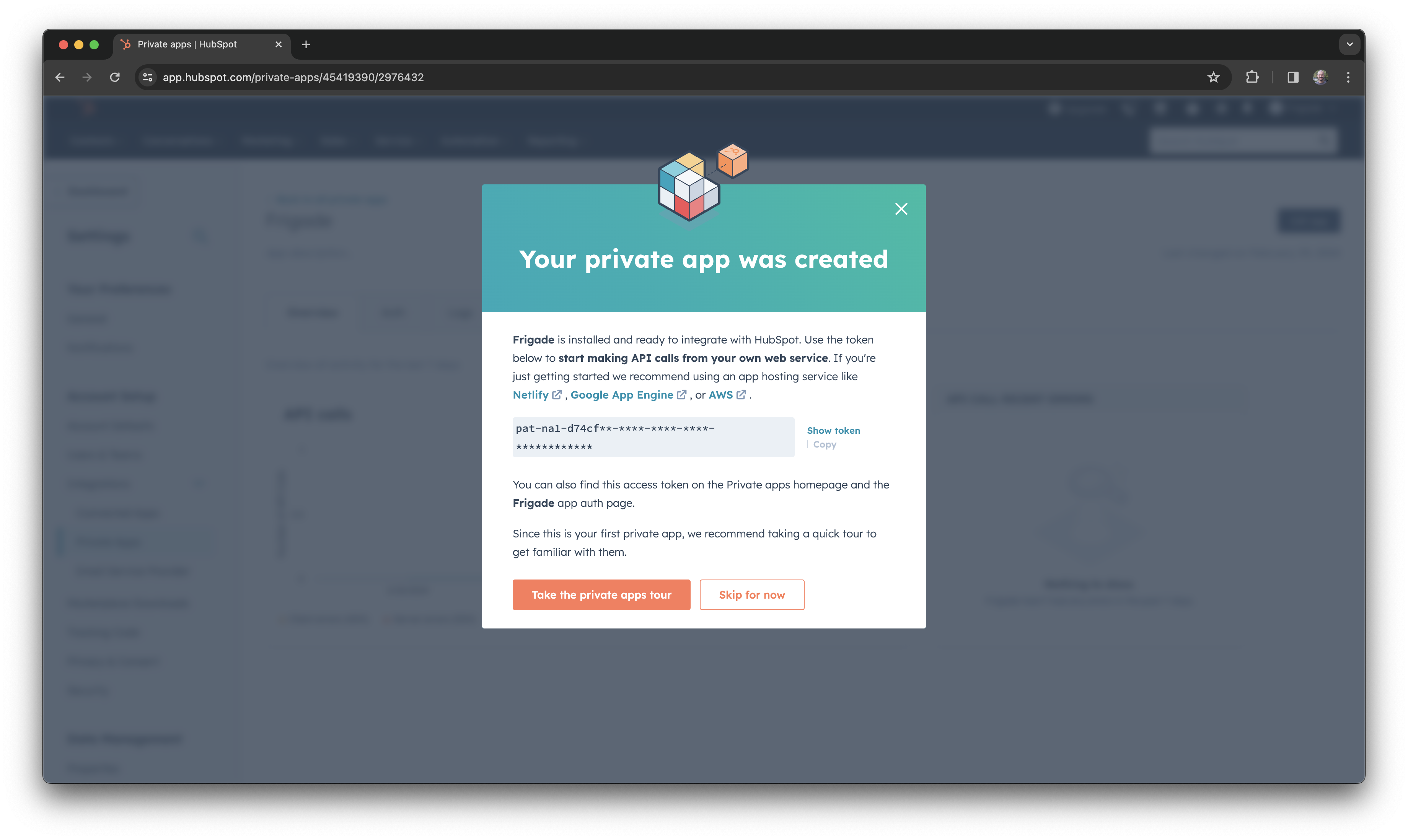
Once the app is created, you will be presented with the API token. Copy this token.
Once you have set the permissions, click on the **Create app** button.
Once the app is created, you will be presented with the API token. Copy this token.
 In the Frigade dashboard, navigate to the **Integrations** page and click on the **Hubspot** integration. Paste the API token into the input field and click **Save**.
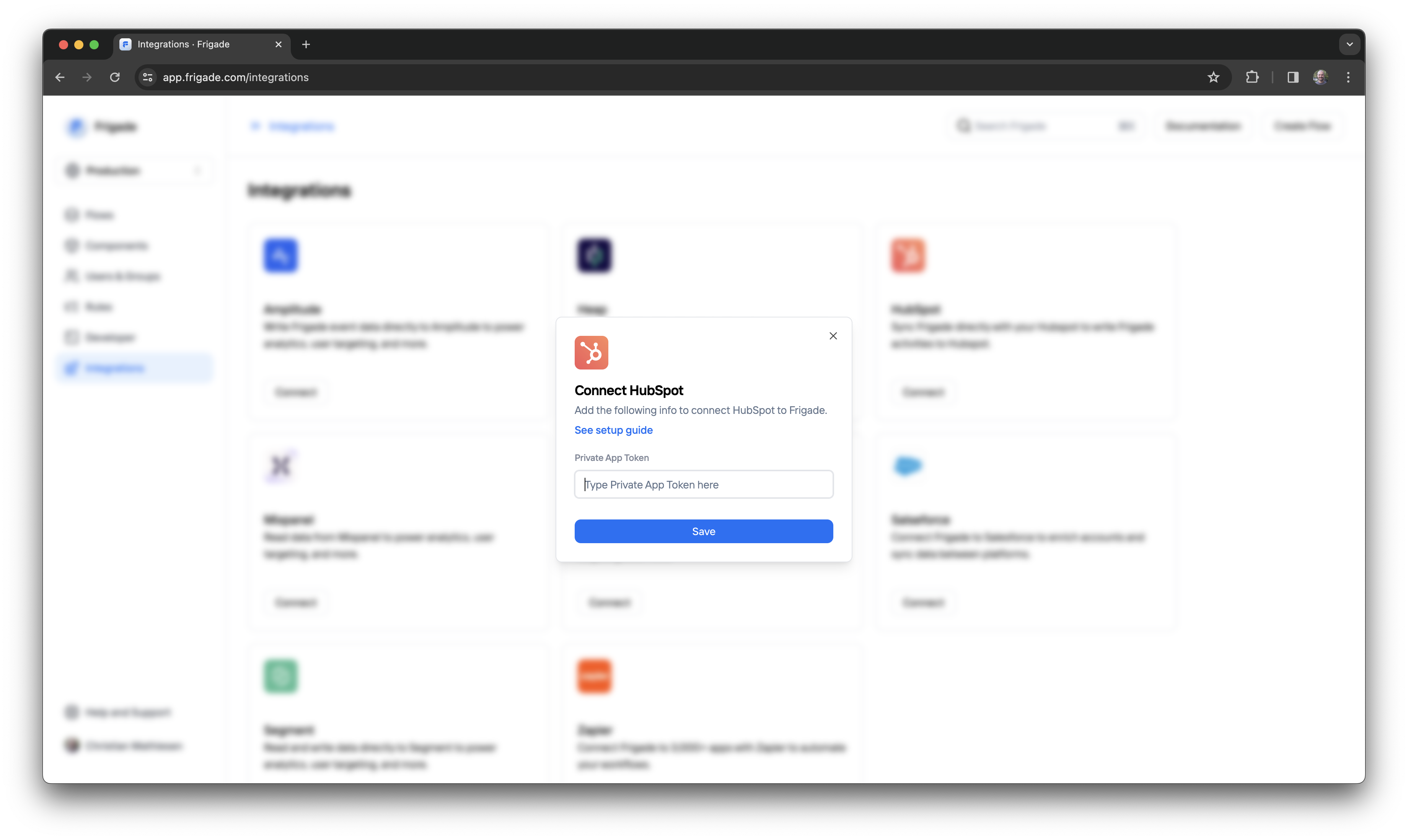 As soon as you save the token, Frigade will start sending data to Hubspot.
That's it! Data from Frigade will now start streaming to Hubspot in real time.
You can test the integration by completing a Flow and checking the data in Hubspot for the corresponding contact.
All data is added as Notes to the contact in Hubspot as seen below:
As soon as you save the token, Frigade will start sending data to Hubspot.
That's it! Data from Frigade will now start streaming to Hubspot in real time.
You can test the integration by completing a Flow and checking the data in Hubspot for the corresponding contact.
All data is added as Notes to the contact in Hubspot as seen below:
 # Syncing Hubspot data into Frigade
Once the integration is connected, you can also pull HubSpot data **into** Frigade. Contact properties become user properties and the contact's primary company's properties become user group properties — making everything HubSpot knows about a user available for [targeting](/platform/targeting), personalization, and segmentation in your flows.
## What gets synced
* **Contact properties → user properties.** Every non-internal property on the matching HubSpot contact (standard fields like `lifecyclestage`, `jobtitle`, `company`, `city`, as well as your custom fields like `free_trial_user` or `plan_tier`) is mirrored onto the Frigade user.
* **Company properties → user group properties.** Properties on the contact's primary associated company (e.g. `industry`, `numberofemployees`, `name`, `domain`) are mirrored onto a Frigade user group representing that company. The group's foreign ID is `hubspot_`.
* **HubSpot's internal bookkeeping fields are excluded.** Anything prefixed with `hs_` or `hubspot` (object IDs, analytics counters, etc.) stays in HubSpot and is not copied over.
## Enabling the sync
In the Frigade dashboard, open the HubSpot integration and turn on:
* **Sync contact properties** to mirror contact fields as user properties.
* **Sync company properties** to mirror company fields as user group properties.
You can enable either or both independently. With both off, HubSpot data only flows outbound (Frigade → HubSpot).
## When the sync happens
The sync is **event-driven**, not a one-time historical import:
* Frigade pulls the latest HubSpot data for a user the next time that user is identified or their properties are updated in Frigade — typically the next time they open your app.
* Properties are refreshed periodically as users return, so updates made in HubSpot (a contact's `lifecyclestage` moving from `lead` to `customer`, a custom flag flipping to `true`) automatically propagate into Frigade without any manual action.
* There is **no historical backfill**. Users who have never been identified in Frigade won't be created from HubSpot data — they need to come through an SDK call or the [User API](/api-reference/users) at least once.
If you want to seed Frigade with users who already exist in HubSpot, identify them via the [User API](/api-reference/users) or the [useUser hook](/sdk/hooks/user). On their next session, their HubSpot properties will be pulled in automatically.
## Using synced properties
Once synced, HubSpot data is available everywhere user and group properties are:
* **Targeting** — show a flow only to users where `user.property('lifecyclestage') == 'customer'`, or to users on a HubSpot company with `group.property('industry') == 'Healthcare'`.
* **Personalization** — reference fields like `{{user.firstname}}` or `{{user.jobtitle}}` directly in flow content.
* **Segmentation** — filter the user list in the dashboard by any HubSpot-sourced property.
For details on writing targeting rules against these properties, see [Targeting](/platform/targeting).
# Syncing Hubspot data into Frigade
Once the integration is connected, you can also pull HubSpot data **into** Frigade. Contact properties become user properties and the contact's primary company's properties become user group properties — making everything HubSpot knows about a user available for [targeting](/platform/targeting), personalization, and segmentation in your flows.
## What gets synced
* **Contact properties → user properties.** Every non-internal property on the matching HubSpot contact (standard fields like `lifecyclestage`, `jobtitle`, `company`, `city`, as well as your custom fields like `free_trial_user` or `plan_tier`) is mirrored onto the Frigade user.
* **Company properties → user group properties.** Properties on the contact's primary associated company (e.g. `industry`, `numberofemployees`, `name`, `domain`) are mirrored onto a Frigade user group representing that company. The group's foreign ID is `hubspot_`.
* **HubSpot's internal bookkeeping fields are excluded.** Anything prefixed with `hs_` or `hubspot` (object IDs, analytics counters, etc.) stays in HubSpot and is not copied over.
## Enabling the sync
In the Frigade dashboard, open the HubSpot integration and turn on:
* **Sync contact properties** to mirror contact fields as user properties.
* **Sync company properties** to mirror company fields as user group properties.
You can enable either or both independently. With both off, HubSpot data only flows outbound (Frigade → HubSpot).
## When the sync happens
The sync is **event-driven**, not a one-time historical import:
* Frigade pulls the latest HubSpot data for a user the next time that user is identified or their properties are updated in Frigade — typically the next time they open your app.
* Properties are refreshed periodically as users return, so updates made in HubSpot (a contact's `lifecyclestage` moving from `lead` to `customer`, a custom flag flipping to `true`) automatically propagate into Frigade without any manual action.
* There is **no historical backfill**. Users who have never been identified in Frigade won't be created from HubSpot data — they need to come through an SDK call or the [User API](/api-reference/users) at least once.
If you want to seed Frigade with users who already exist in HubSpot, identify them via the [User API](/api-reference/users) or the [useUser hook](/sdk/hooks/user). On their next session, their HubSpot properties will be pulled in automatically.
## Using synced properties
Once synced, HubSpot data is available everywhere user and group properties are:
* **Targeting** — show a flow only to users where `user.property('lifecyclestage') == 'customer'`, or to users on a HubSpot company with `group.property('industry') == 'Healthcare'`.
* **Personalization** — reference fields like `{{user.firstname}}` or `{{user.jobtitle}}` directly in flow content.
* **Segmentation** — filter the user list in the dashboard by any HubSpot-sourced property.
For details on writing targeting rules against these properties, see [Targeting](/platform/targeting).